How to run an online marathon for students with unlock rules
A marathon is a group challenge: everyone starts on the same day, a new lesson opens every day or two, and the class keeps pace together. Teachers who run these in chat apps usually end up sending lessons by hand, reminding people about deadlines and keeping a spreadsheet of who finished what. In verbios, the platform sets the pace for you. (In the early days this feature was called sprints. In the app it is now called marathons.)
Turn any course into a marathon
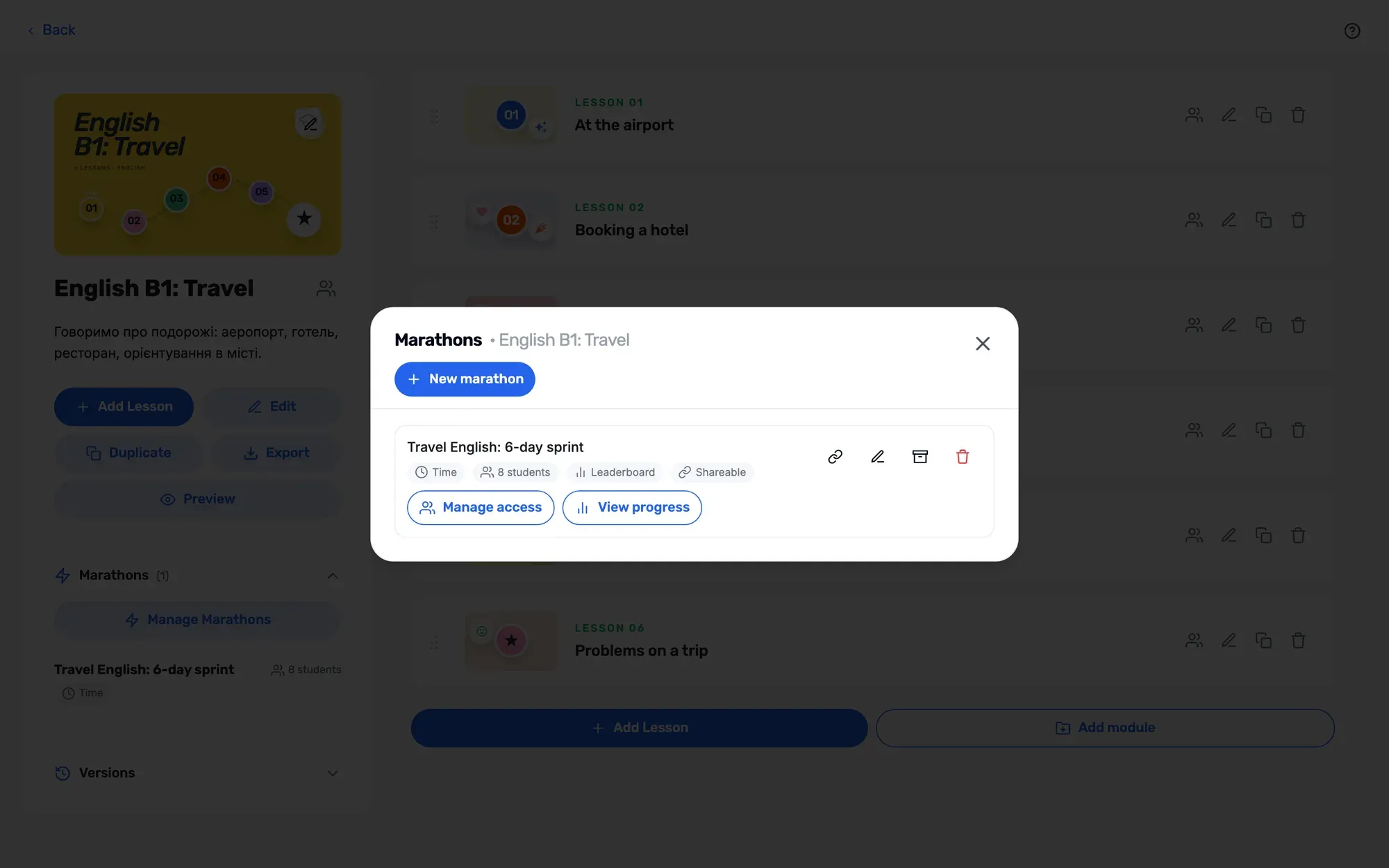
You do not build anything new. Open a course you already have, click Manage marathons, then New marathon. The course stays as it is, and the marathon adds the rules: who takes part, when lessons open and whether there is a leaderboard.
A marathon is a layer on top of a course. Manage access and view progress sit one click away.
Because the marathon is separate from the course, you can run the same course several times: a spring group and an autumn group, each with its own people and its own pace.
Choose how lessons open
This is the part that makes a marathon feel like a marathon. For each one you pick an unlock mode:
- all lessons at once, for a self-paced course with a start date
- on a schedule, one lesson every set interval
- as students finish each lesson, so nobody skips ahead
- on set dates that you choose
- manually, one at a time, when you decide the group is ready
A locked lesson shows the student exactly when it opens, so there is no “when is the next one?” message in your inbox.
Add students and watch the progress
You can assign students directly from your list or switch on a join link and share it in a channel or a post. Anyone who opens the link creates an account or signs in and lands in the marathon. You can turn the link off whenever enrollment closes. The link can also stay free or, on a paid plan, work as a paid link where students pay you directly through the payment method you connected.
The progress view is a grid: one row per student, one column per lesson, with a lock icon for what is still closed and the score for what is done, plus an overall grade. You see in one glance who is flying, who stalled on lesson three and who has not started.
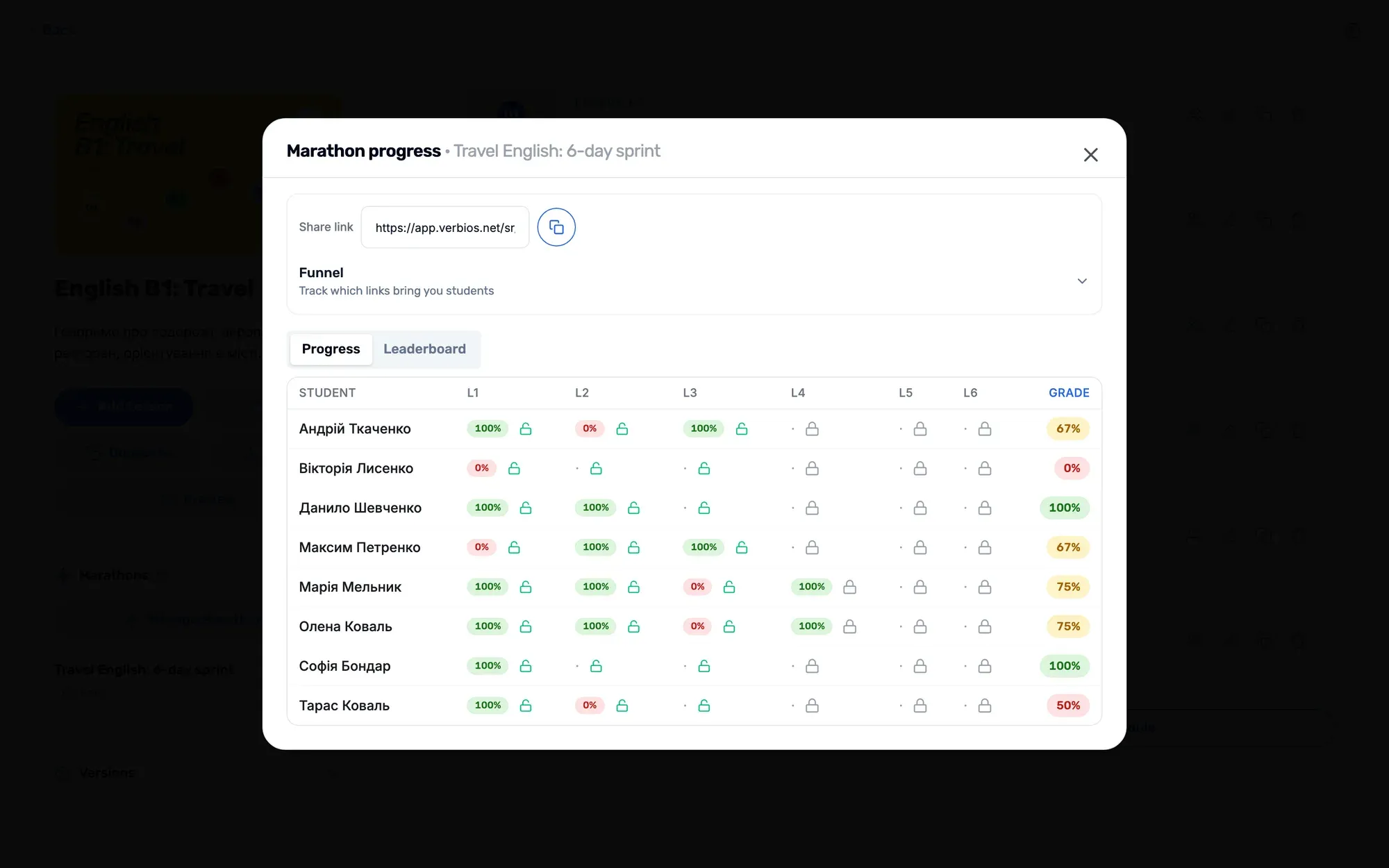 Each row is a student, each column a lesson. Gaps are easy to spot.
What the student sees
Students get a marathon page with their unlocked lessons, the locked ones with their opening times, their overall course progress and, if you enabled it, a leaderboard that shows their place among the other participants.
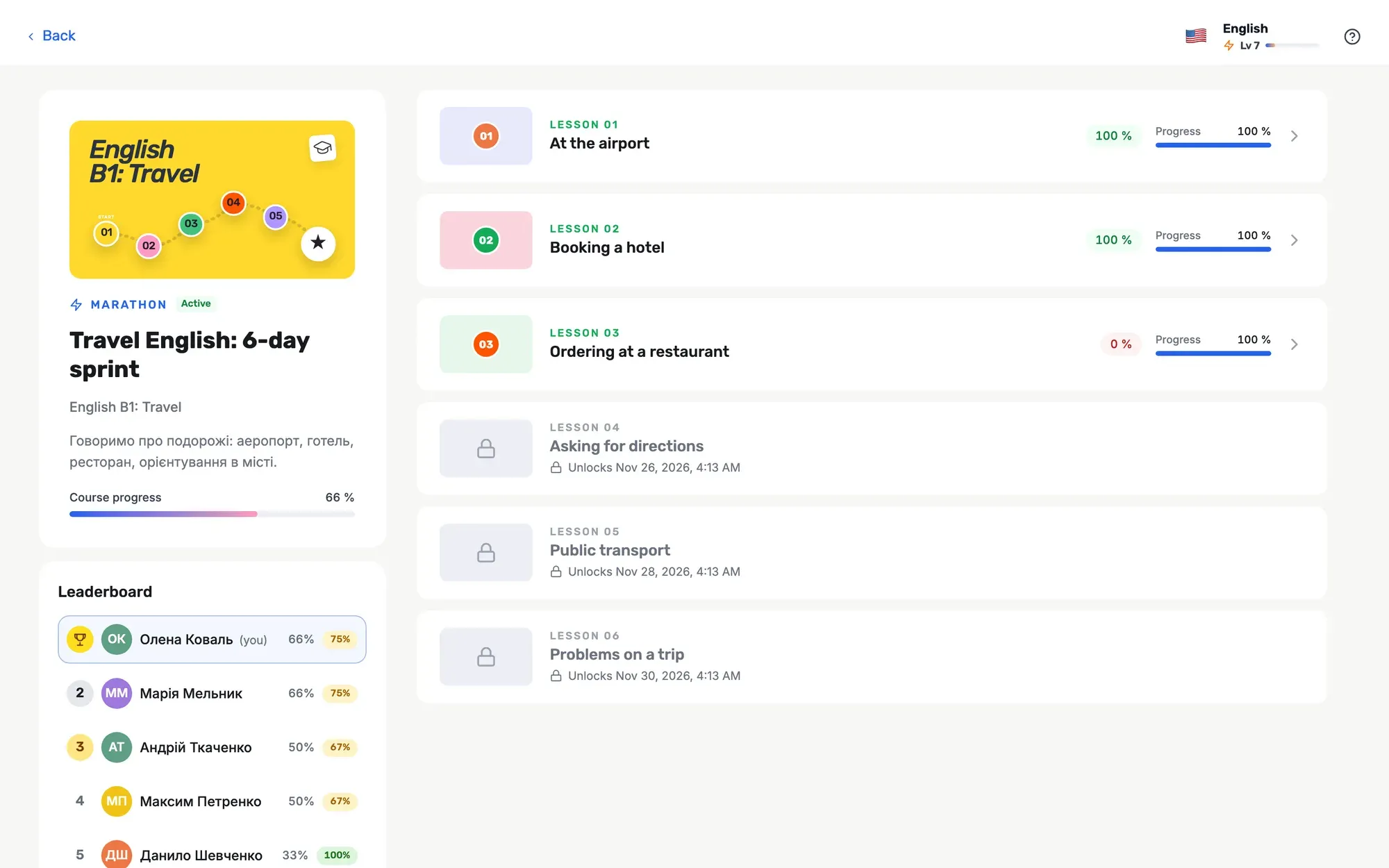 Locked lessons show when they open. The optional leaderboard shows a student's place in the group.
The leaderboard is the part some teachers love and others skip. It is optional per marathon, so a group of nervous beginners does not have to see a ranking.
A six-day travel English marathon
Say you teach B1 and have a course called Travel English with six lessons: airport, hotel, restaurant, directions, transport and problems on a trip. You create a marathon, set lessons to open every two days and post the join link in your channel. Eight people join. On day one only the airport lesson is open, and by day four the early finishers are waiting for the next one while the slower ones are catching up. You open the progress grid in the evening, see that two students are at 0 percent on lesson three and write to them. Nobody had to be told which lesson comes next.
Sharing the course itself
If a colleague wants your course for their own marathon, verbios can share it too. Save a version of the course, switch on sharing and send the link or the short code. They confirm the import on their dashboard and get their own copy, while your original stays untouched. You can switch sharing off or refresh the code at any time.
If you teach inside a school, see marathons for schools. To plan the lessons around a marathon, take a look at the schedule tools. Starter has a 7-day free trial, and the pricing page lists what each plan includes.
Frequently asked questions
Can one course run as several marathons?
Yes. A marathon is a layer on top of a course, so you can create separate marathons from the same course, each with its own students, unlock rules and leaderboard.
Do students need an invitation to join?
No. You can assign students directly, or switch on a join link in the marathon settings and share it anywhere. The link asks the student to create an account or sign in.
Is the leaderboard required?
No. It is optional and you switch it on per marathon.