Online booking and a schedule for tutors that runs itself
A tutor’s schedule usually lives in three places: a messenger where students ask “can we move to Thursday?”, a calendar app, and the teacher’s head. Time zones make it worse once a student moves abroad. The point of an online schedule is to put all of that in one place, and to let students ask for time without a long chat thread.
A week you can read at a glance
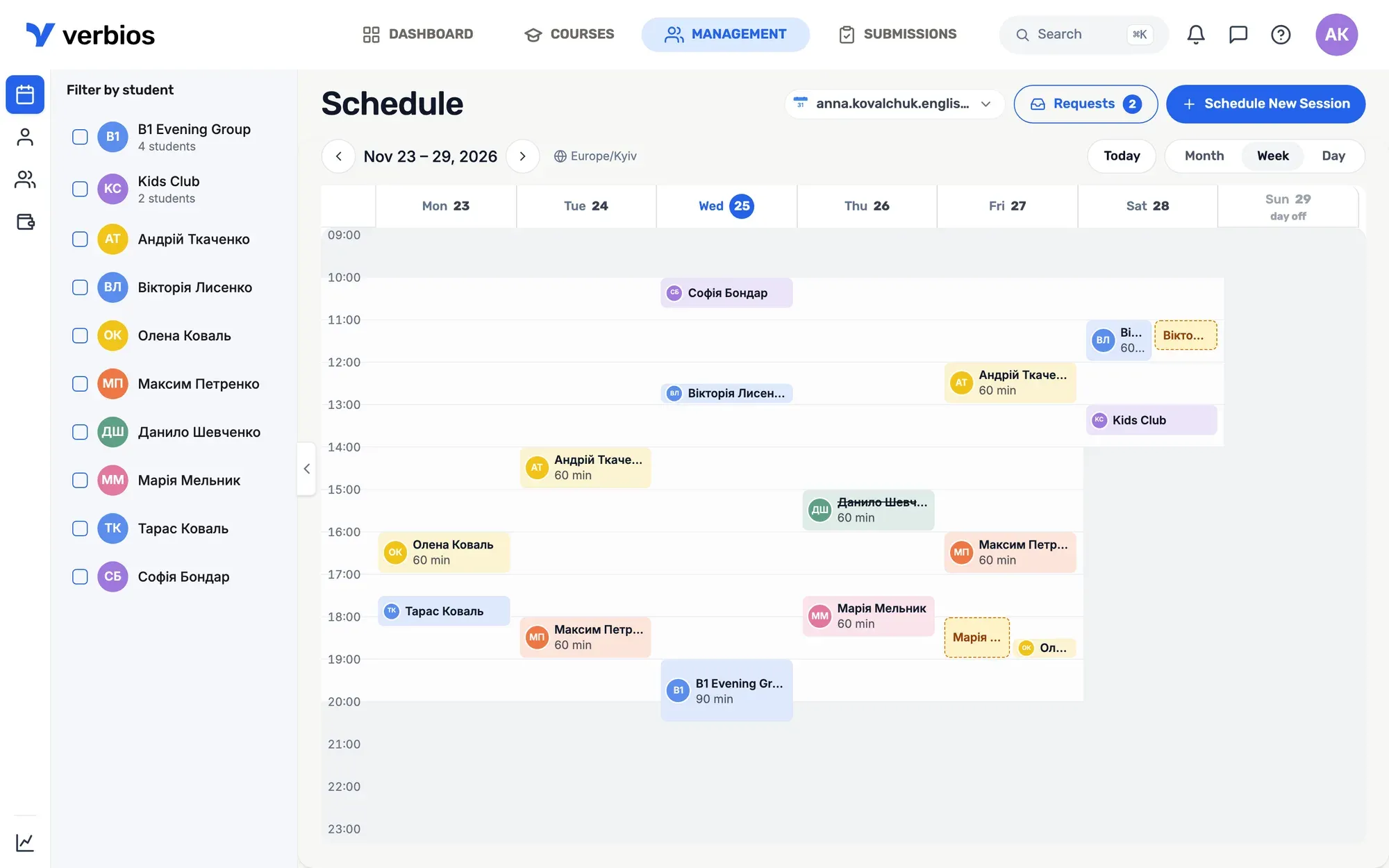
Every student and every group in verbios has its own color, used wherever their avatar appears. On the schedule, lessons are filled with that color, so you see who is next without reading names. The week view has a clean grid with a live “now” line, past lessons fade, no-shows are marked on the avatar, and busy time from Google Calendar shows as gray blocks.
Lessons are color-coded by student or group. Requested lessons are drawn with a dashed outline.
Your schedule always displays in the time zone from your profile, with a note when your device is somewhere else. Lessons are at least 30 minutes long, and you cannot double-book yourself, which saves you from the one mistake nobody wants to explain to a student.
Students ask, you approve
Turn on “Accept session requests” in your teaching profile and set your weekly availability. Students can then request a slot from the times you published. If you want to limit it, you can switch on availability hours: students can request lessons only inside them, other times are grayed out on your schedule, and you can still book lessons yourself at any time.
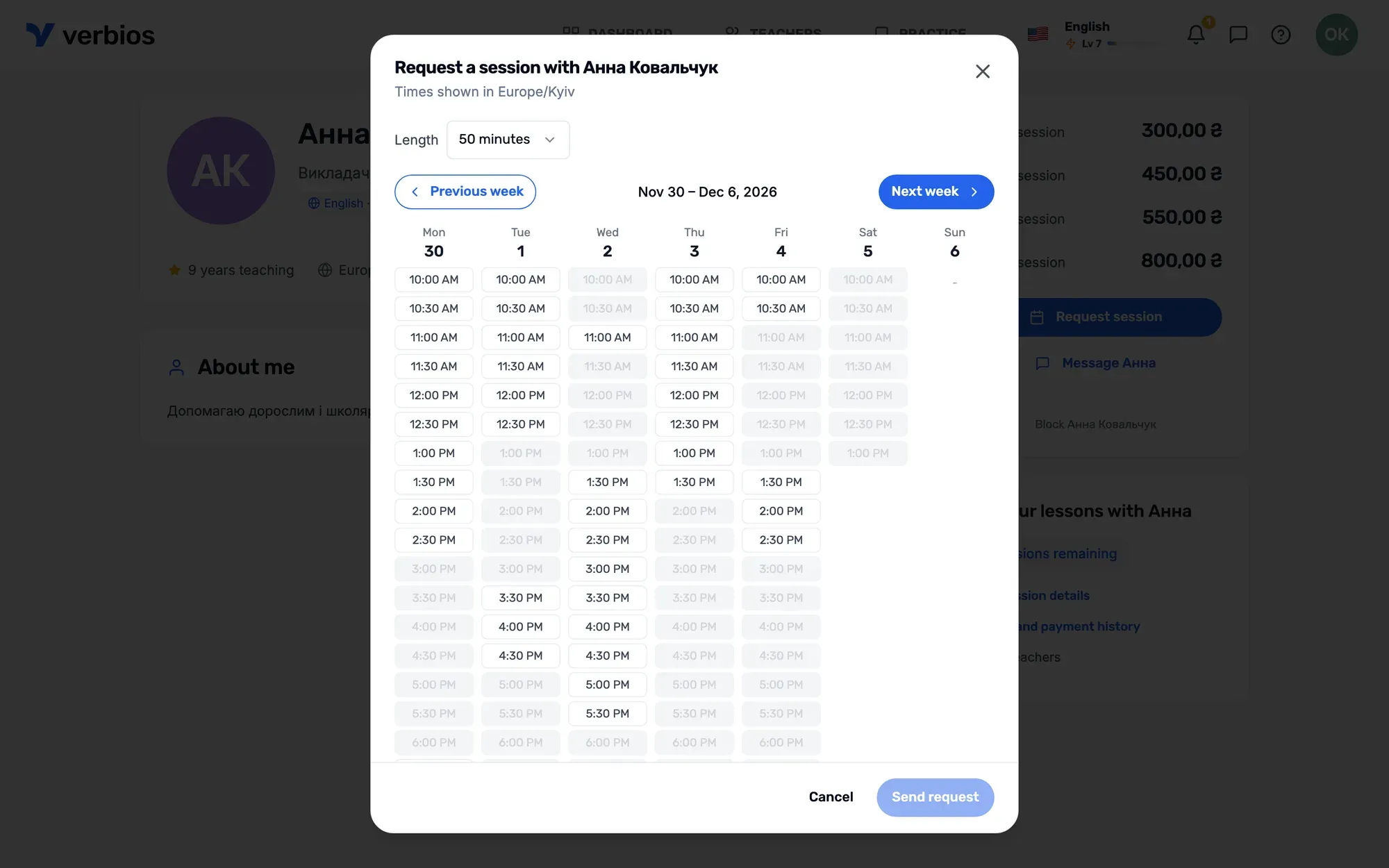 A student sees free slots in their own time zone and sends a request.
When a student requests or books, the available times are shown in the student’s own time zone, the one in their settings, not yours. The lesson is still booked at the right moment on your side. A student in Warsaw and a teacher in Kyiv, or a student who moved to Canada, no longer have to do arithmetic.
You can also set a minimum break between booked lessons, from 5 to 60 minutes, under Pricing and session length in your teaching profile. Students cannot book or request a time closer than that to your other lessons, before or after. The default is no break, and lessons you schedule yourself are never blocked.
Requests where you already are
Each request appears in your calendar as Requested and on your dashboard under Needs attention. You approve it, or decline it with a message. Approving a request from someone new adds them to your students, so a first booking turns into a student record without extra typing. When a student or a parent sends a request through chat, the message shows the requested day, time and length with Approve and Decline buttons, on the website and in the phone app. You can handle it between two lessons from your phone.
The dashboard for your teaching day
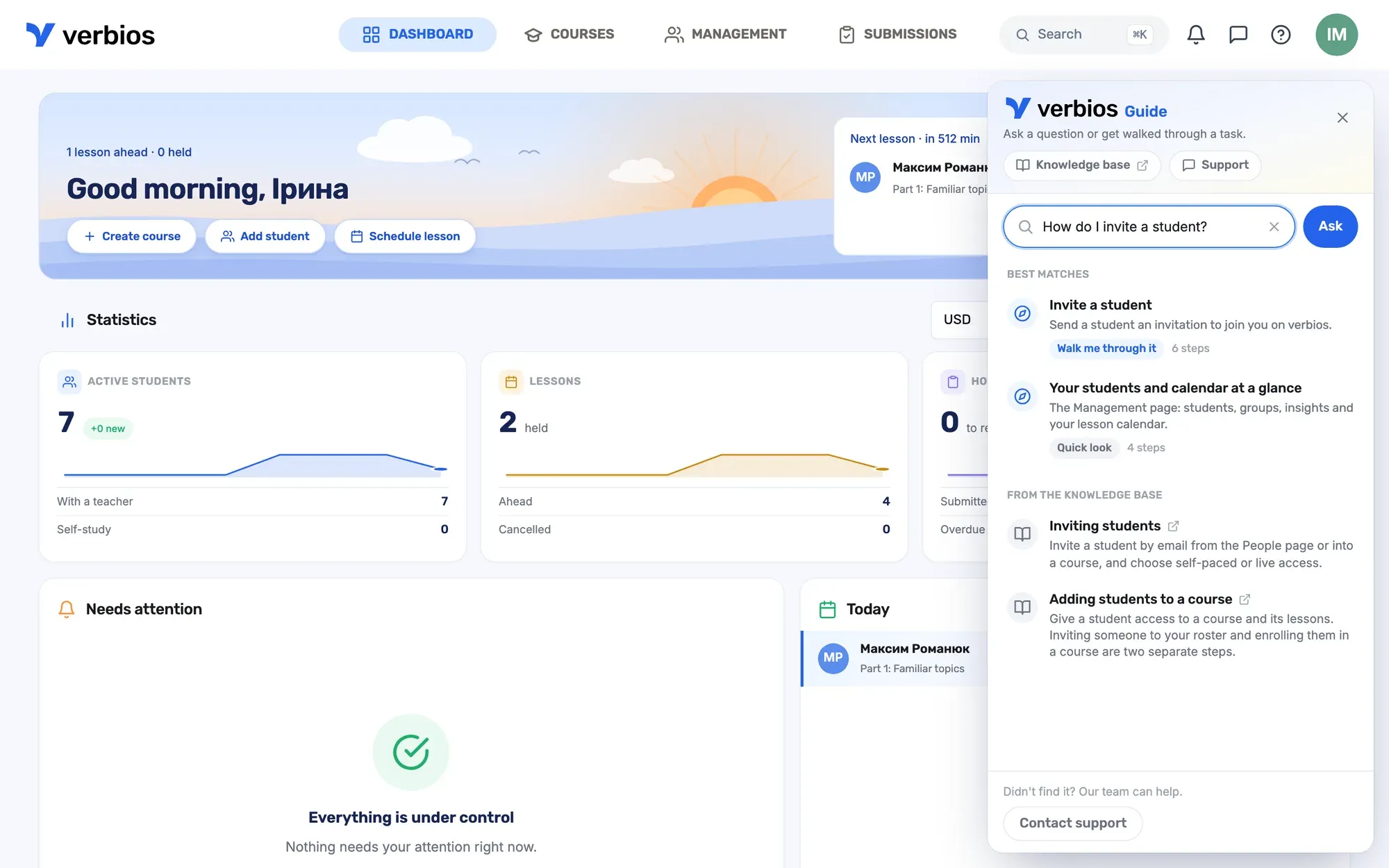
The teacher dashboard brings upcoming sessions, teaching statistics and the items that need you into one place. Open a session, confirm a lesson that took place, or send a payment reminder directly from the item.
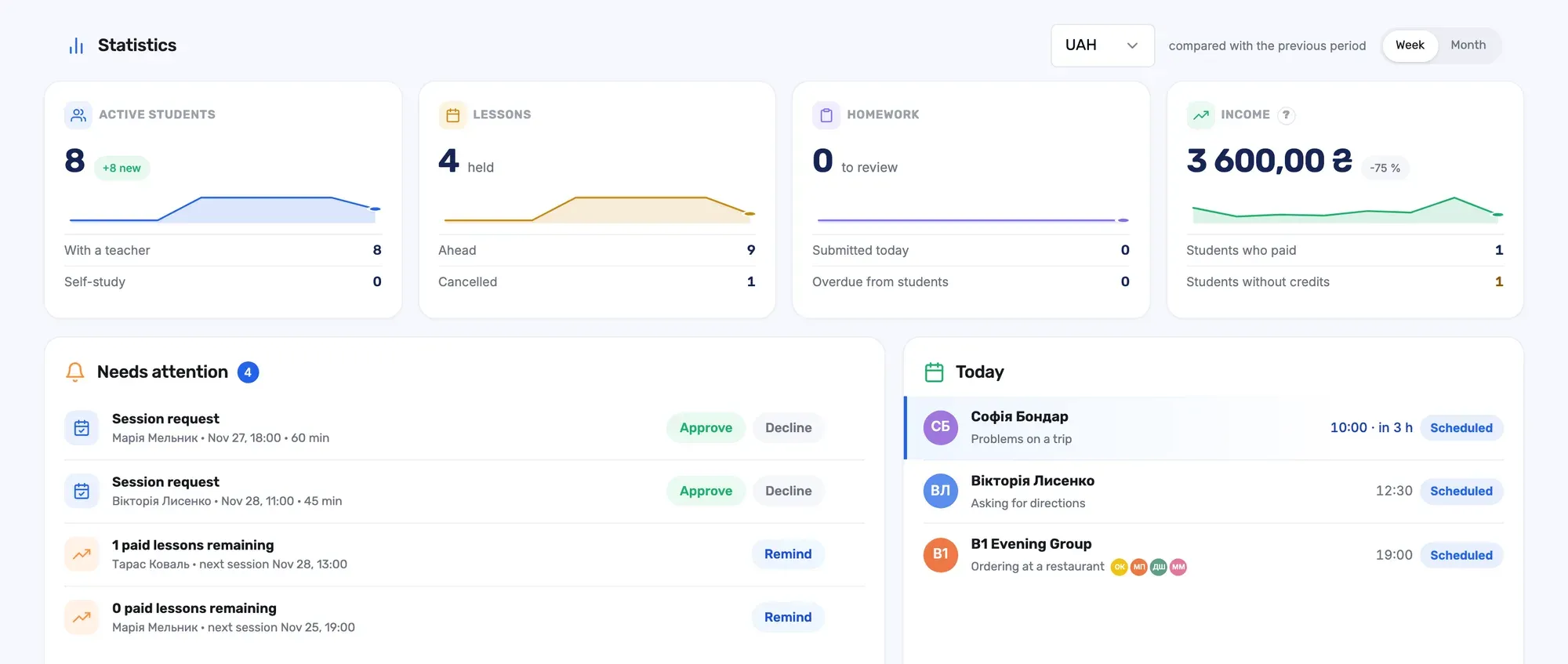 Needs attention lists requests and payment reminders, and Today lists the lessons ahead.
A realistic Tuesday
Anna wakes up, opens the dashboard and sees two requests: a student wants Friday at 6 p.m., another wants Saturday at 11. One fits, so she approves it. The other collides with a family lunch she keeps as a gray block, so she declines with “Saturday afternoon works better”. Her Today list shows three lessons, the first in five hours. Nothing was negotiated in a chat, and nobody converted a time zone.
For the lessons that repeat every week, see recurring lessons and Google Calendar sync. When a lesson is taught and you need to know whether it was paid, student payment tracking does that in the same app.
To try the schedule with your own students, start the 7-day Starter trial from the pricing page.
Frequently asked questions
Can students request a lesson time themselves?
Yes. Turn on "Accept session requests" in your teaching profile and set your weekly availability. Connected students, and anyone if your profile is public, can then request a slot. You approve or decline it.
Do students see times in their own time zone?
Yes. When a student requests or books a lesson, the available times are shown in the time zone from their settings. The lesson is still booked at the right moment for the teacher.
Can I leave a gap between booked lessons?
Yes. In your teaching profile you can set a minimum break between lessons from 5 to 60 minutes. It applies to lessons students book or request. Lessons you schedule yourself are never blocked.