How to get started with verbios: the Guide shows you where to click
You open a new tool with a clear job in mind: invite a student, schedule next Tuesday’s lesson, set up payments. The tool has forty buttons, and none of them is labeled with your job. Most people close the tab, or write to support and wait.
The question mark in the verbios header opens verbios Guide, and it is built for exactly that moment. You tell it what you want to do, and it shows you where to click, on the real screen, one step at a time.
Ask in your own words
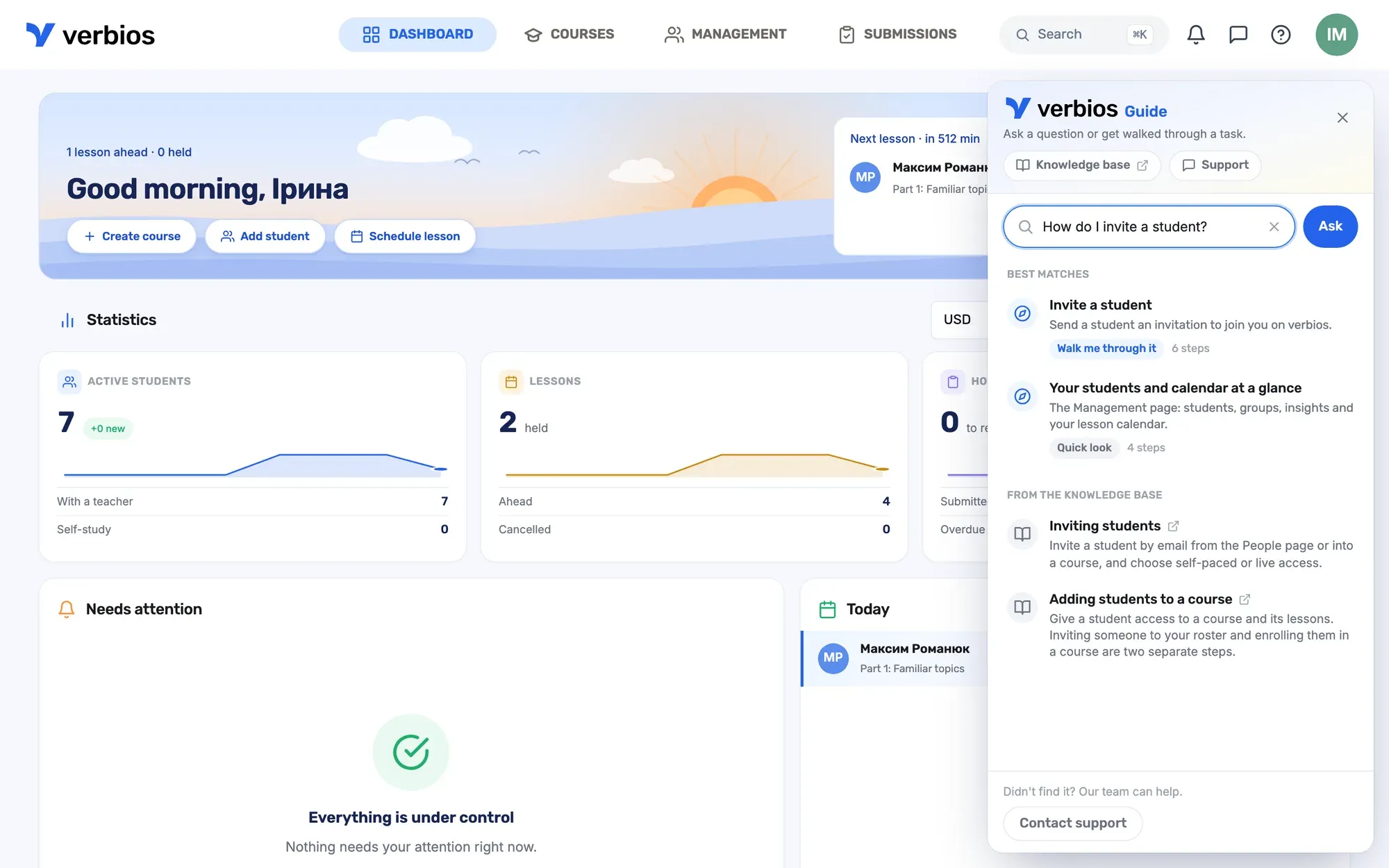
Open the Guide and you see a search box that says “What do you want to do?”. Type a question the way you would say it to a colleague: “How do I invite a student?” The list below fills with the closest matches, each marked either “Walk me through it” or “Quick look”, with the number of steps.
The Guide panel: a typed question, the matching walkthrough with its step count, and articles from the knowledge base underneath.
Before you type anything, the Guide suggests walkthroughs for the page you are on. Below that sits the full list, grouped by area: getting started, courses, lessons, homework, schedule, students, groups, payments, plans and billing, and more. Under the matches you also get links to knowledge base articles on the same topic, and a Support button is always one click away.
If you are completely new, start with “Find your way around verbios”. It is a quick look at the top bar: where to go and where to get help.
A walkthrough that moves as you do
Pick “Walk me through it” and the page dims, one control lights up, and a small card tells you what to do. For “Invite a student” the first card says to click the plus button. The walkthrough waits until you actually click it. Then the invite form opens, and the next card points at the name field and explains that the name is optional.
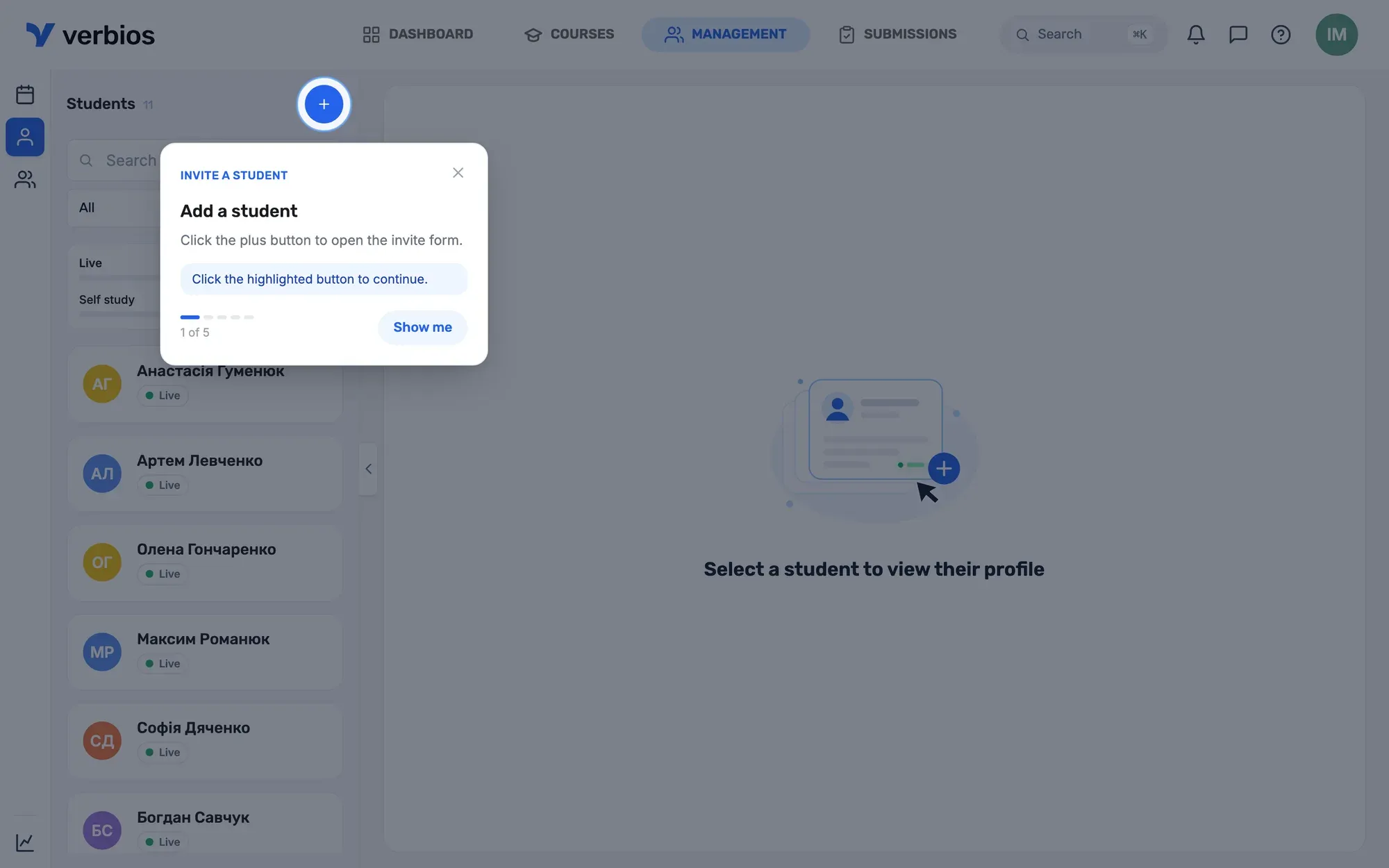 Step 2 of 5 in the Invite a student walkthrough: the form is open and the card explains the name field.
A few things make this different from a slideshow tour:
- It starts where you are. If you are already on the Management page, you skip the part about getting there.
- It skips what you have already done.
- If a walkthrough needs a course, a lesson or a student and you do not have one yet, it helps you create one first.
- You can stop at any point and pick it up later from the Continue section of the Guide.
It works on phones, during live lessons and in all 12 app languages.
When no ready walkthrough fits
The ready-made list covers the common jobs. Your question will sometimes be something else. On a paid plan, if nothing matches, the Guide offers “None of these fit. Make one for me”. It puts together a walkthrough for your exact question and labels it “Made for you”.
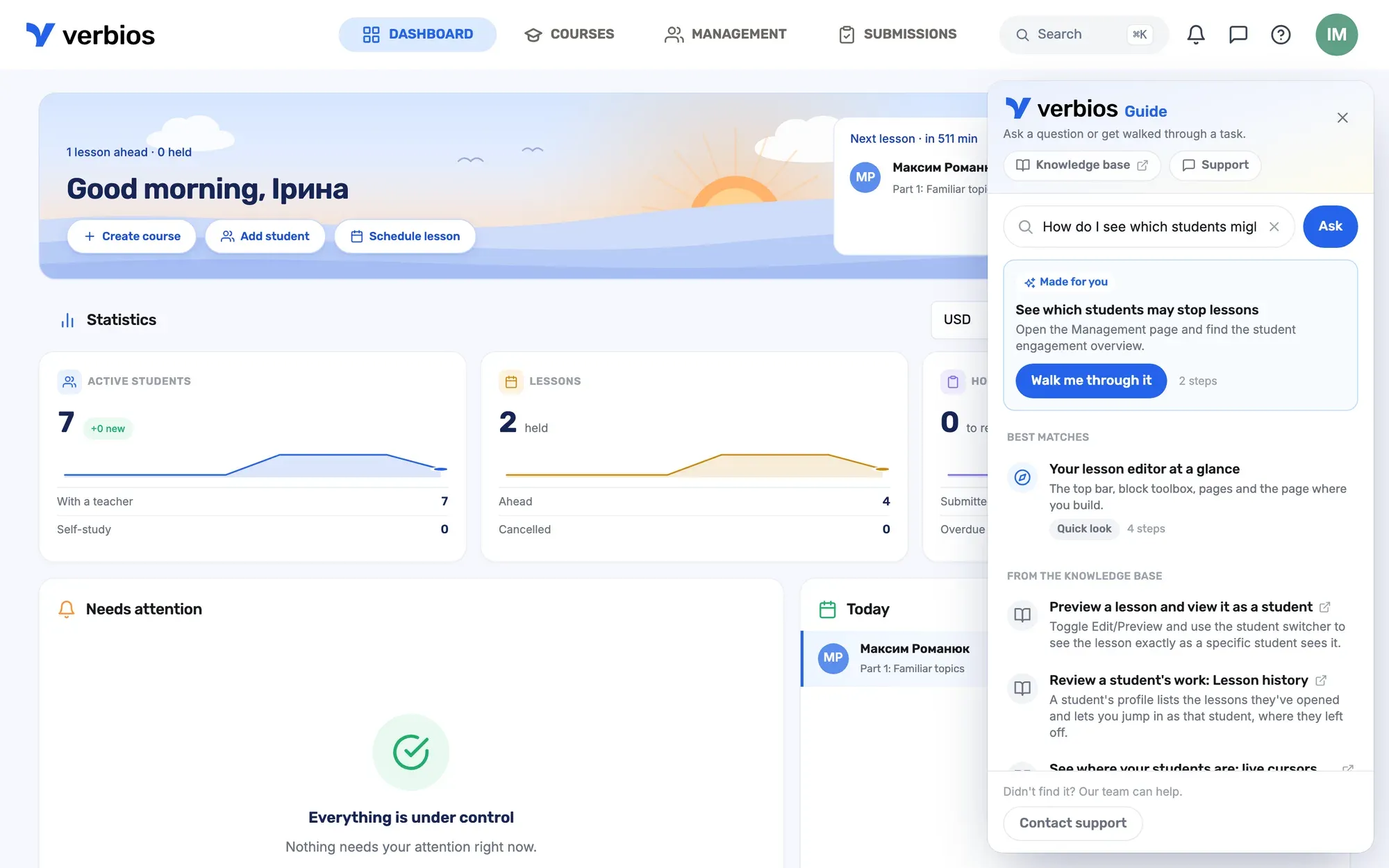 A custom walkthrough for the question 'How do I see which students might stop lessons soon?'
Here the question was how to see which students might stop lessons soon. The Guide answered with a two-step walkthrough through the Management page to the student overview. If verbios has no way to do what you asked, the Guide tells you so and offers to pass the question to the team, so you are not left clicking around.
Students and parents get short answers
Students and parents do not need a tour of the course builder. They get short answers to the questions they actually have: where the homework is, how to join a lesson, where to see payments. The same Support and knowledge base links are there for them.
A first week with the Guide
Say you are a tutor who signed up on Sunday evening. On Monday you open the Guide, type “create a course”, and follow the six steps to an empty course with a title and a first lesson. Then you ask how to invite a student and watch the invite form open. On Tuesday you type “schedule a lesson” and the Guide walks you through the calendar. By Wednesday you have a course, a student and a lesson on the calendar, and you never searched the help pages.
When you have a few students and want to run the business side properly, the next read is running a tutoring business. Before a first lesson with a new student, see the first online lesson with a new student.
The Guide is part of every verbios account. Create yours and press the question mark.
Frequently asked questions
Where do I find verbios Guide?
It is the question mark button in the header, on every page. On a phone it sits in the same place or in the menu. Click it, then type what you want to do or pick a walkthrough from the list.
Does the Guide cost extra?
No. The ready-made walkthroughs, the knowledge base links and the short answers for students and parents are included. Walkthroughs made specially for your question are available on a paid plan.
What if I already skipped the old product tour?
The Guide replaces the old tour. If you went through it or skipped it, the Guide will not prompt you again. You can open it yourself whenever you need it.