Canvas lessons: a Miro alternative for language teachers
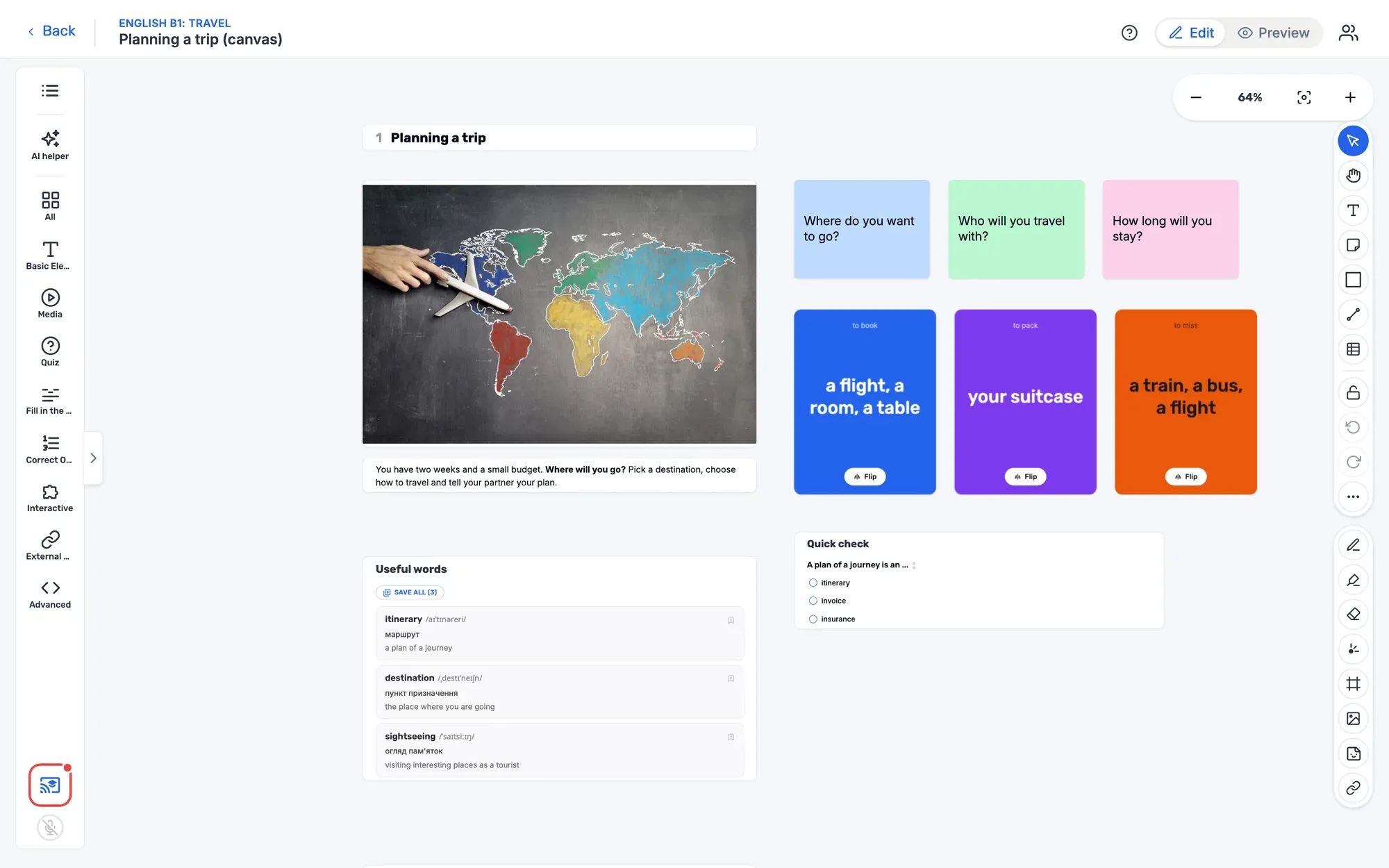
Some lessons do not want pages. A picture, three prompts, a vocabulary list and a quick quiz look best all on one board, the way you would lay them out on a table. That is what a canvas lesson is in verbios: one free-form board instead of a stack of pages, with real lesson blocks on it.
If you have been looking for a Miro alternative for English lessons, this is the closest thing inside a platform that also does homework, scheduling and payments. Here is what it holds.
One board, real blocks
The screenshot shows a canvas lesson about planning a trip. There is a header, a map picture with a task, three sticky notes with questions, three flip cards, a vocabulary block and a quiz, all in positions you chose. The quiz and the vocabulary block are the same blocks you use in a normal lesson, so they still check answers and let students save words. If you want the whiteboard side of this, see the online whiteboard.
Flip cards
A flip card is a two-sided card that turns over when you click it. On the board above, the front of each card holds a verb and the back holds the phrase that goes with it.
Select a card and the settings panel opens. You can edit the title and text of both sides and set the colors. Flip cards pasted from a Miro board stay real flip cards where they sat on the board, and the AI assistant can read and create them. Miro cards, checklists and dashed borders also come across, and a pasted box moves, resizes and deletes together with its text.
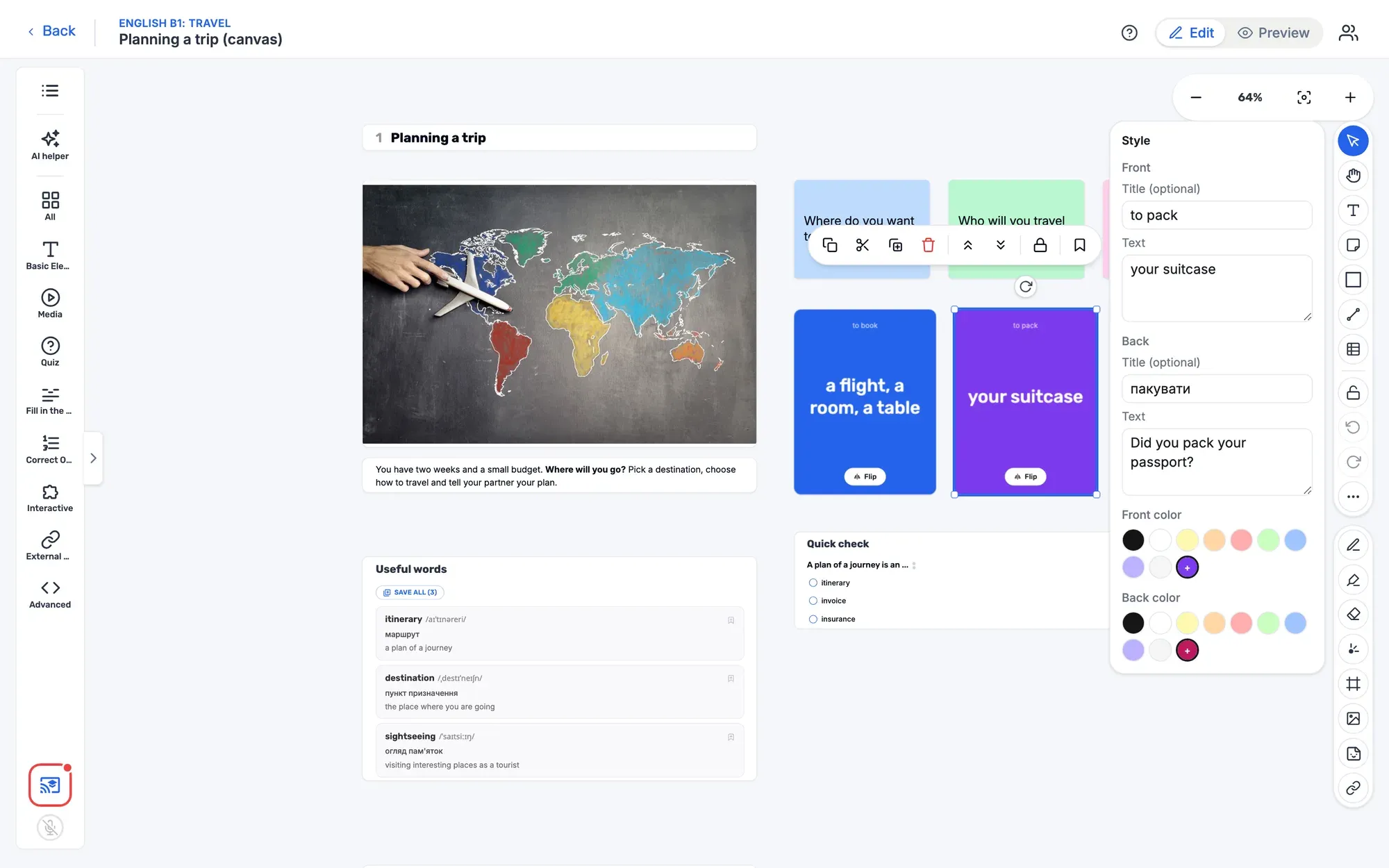 Both sides of a flip card are edited in one panel.
Paste keeps the layout
Teachers copy a lot. Select several things on a canvas lesson, such as blocks, notes, shapes and lines, paste them, and they land together exactly as you arranged them instead of piling up in the middle. This works inside the same lesson and when pasting into a different one, which makes a good board easy to reuse for the next group.
Sections: jump to any part of a big board
A large board needs a way to move around. Headers have always been the anchors in the Sections list. Now any element can be one. Select a picture, a block or anything else, click the bookmark in the toolbar above it and give it a title. Blocks start with their instructions as the title. The new section joins the list next to your headers, and you and your students can jump to it.
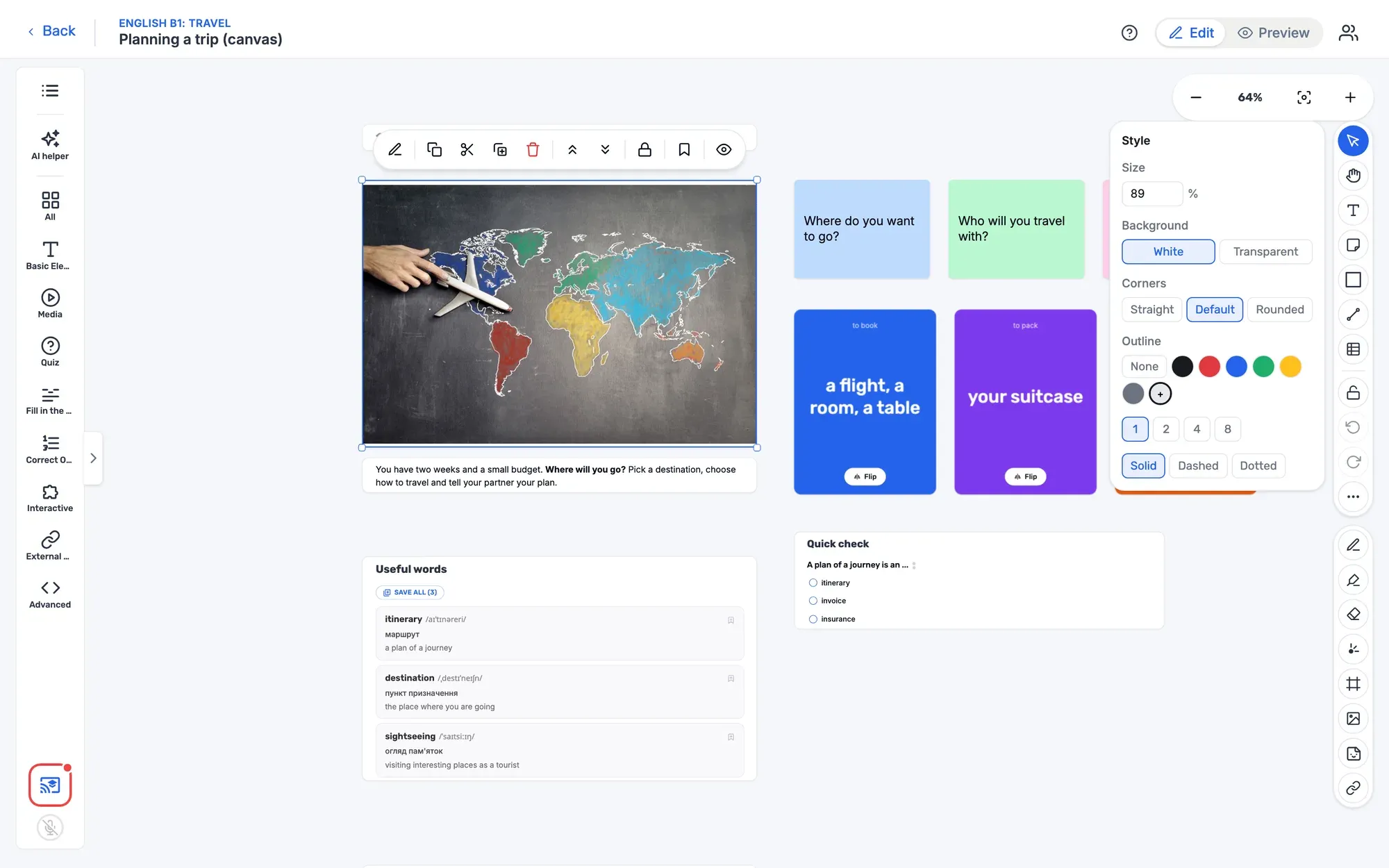 Click the bookmark to turn a picture into a section.
Hover over the bookmark to see or edit the title, and click it to remove the section. You can also remove it from the list.
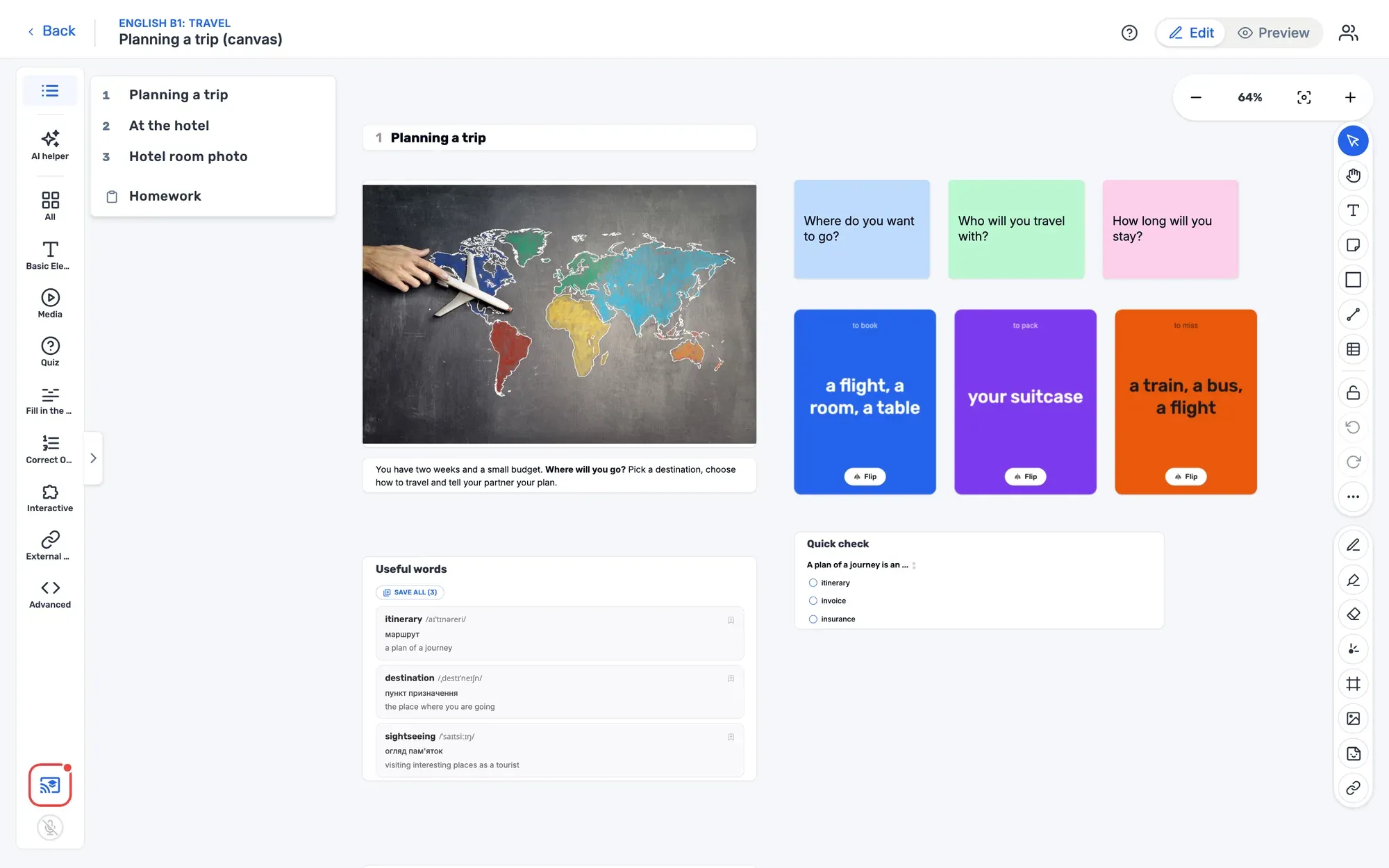 Headers and bookmarked elements share one Sections list.
A scenario: a speaking lesson on travel
You open the board with the map and ask your student where they would go. The three sticky notes give the questions. For each one the student turns a flip card to see a verb and a phrase they can use. Halfway through you bookmark the map as a section called “Plan the trip”, so when you come back to the group next week you jump straight to it. At the end the student answers the quiz at the bottom and saves the words they missed.
Boards like this also pair well with ideas from the guide on keeping students engaged online, and you can add a random prompt activity from card decks. If you currently juggle several tools, see Zoom, Miro and Wordwall in one place.
To build your first board, pick a plan on the pricing page.
Frequently asked questions
Can I paste content from a Miro board into a canvas lesson?
Yes. Pasted Miro items keep their layout, images arrive as single images you can move and resize, and flip cards, checklists and dashed borders come across too.
Can students use sections to navigate a canvas lesson?
Yes. Sections appear in a list, and you and your students can jump straight to one.