Online whiteboard for English lessons, built into the class
An English lesson often needs a place to point at things: circle the wrong verb, color the ending, put three examples next to each other. Screen sharing a separate whiteboard tool means another tab, another login for the student and a board that disappears after class.
The verbios whiteboard is part of the lesson. It opens next to the exercises, the student already has access, and what you draw is still there when you reload.
Everyone draws at once
The whiteboard runs on the same engine as canvas lessons, so it has the full set of canvas tools: shapes, curved arrows, hatched fills, a laser pointer and saving the board as an image. Teacher and student can draw at the same time without overwriting each other, and you see each other’s cursors, so “look at the second line” actually works.
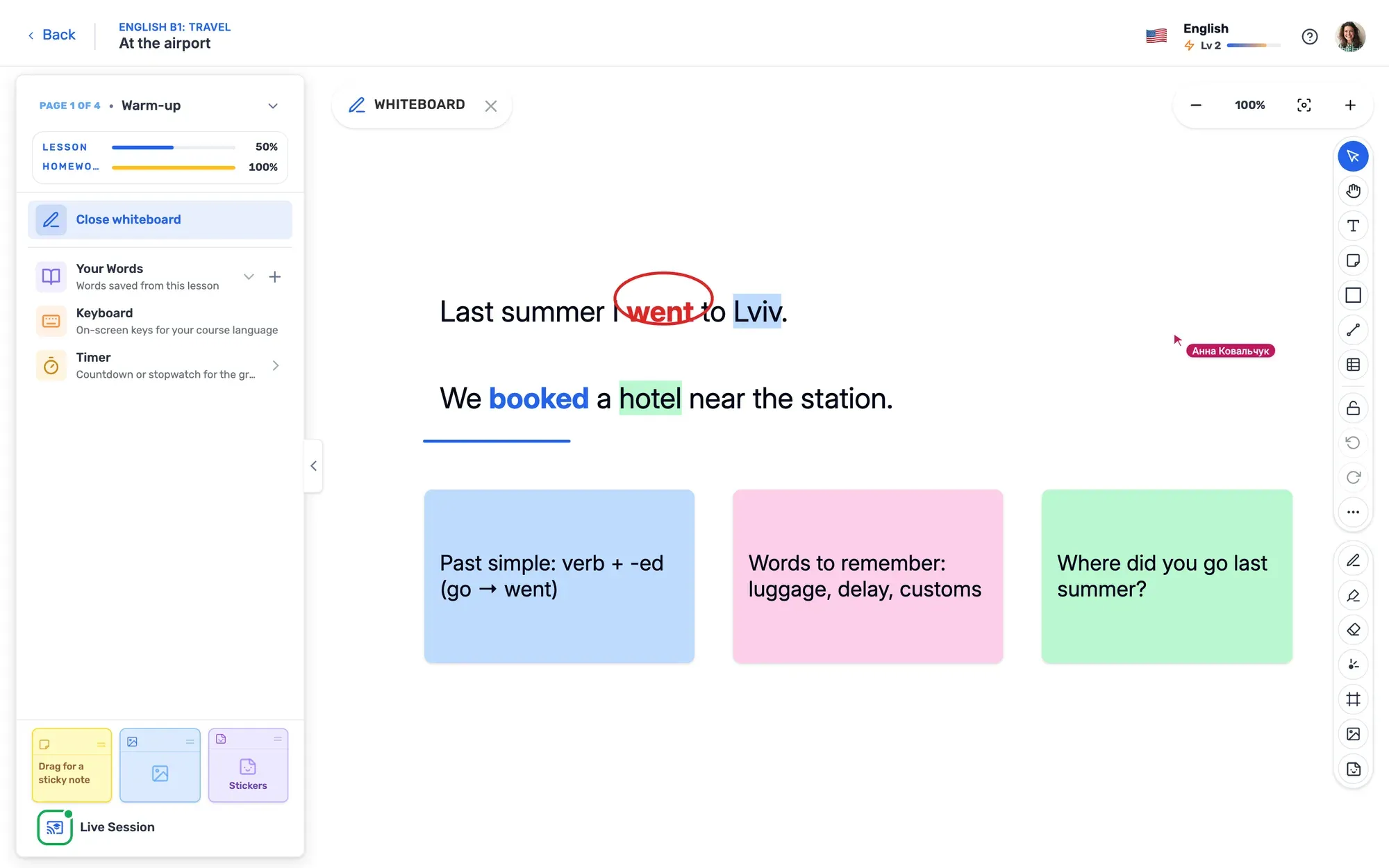
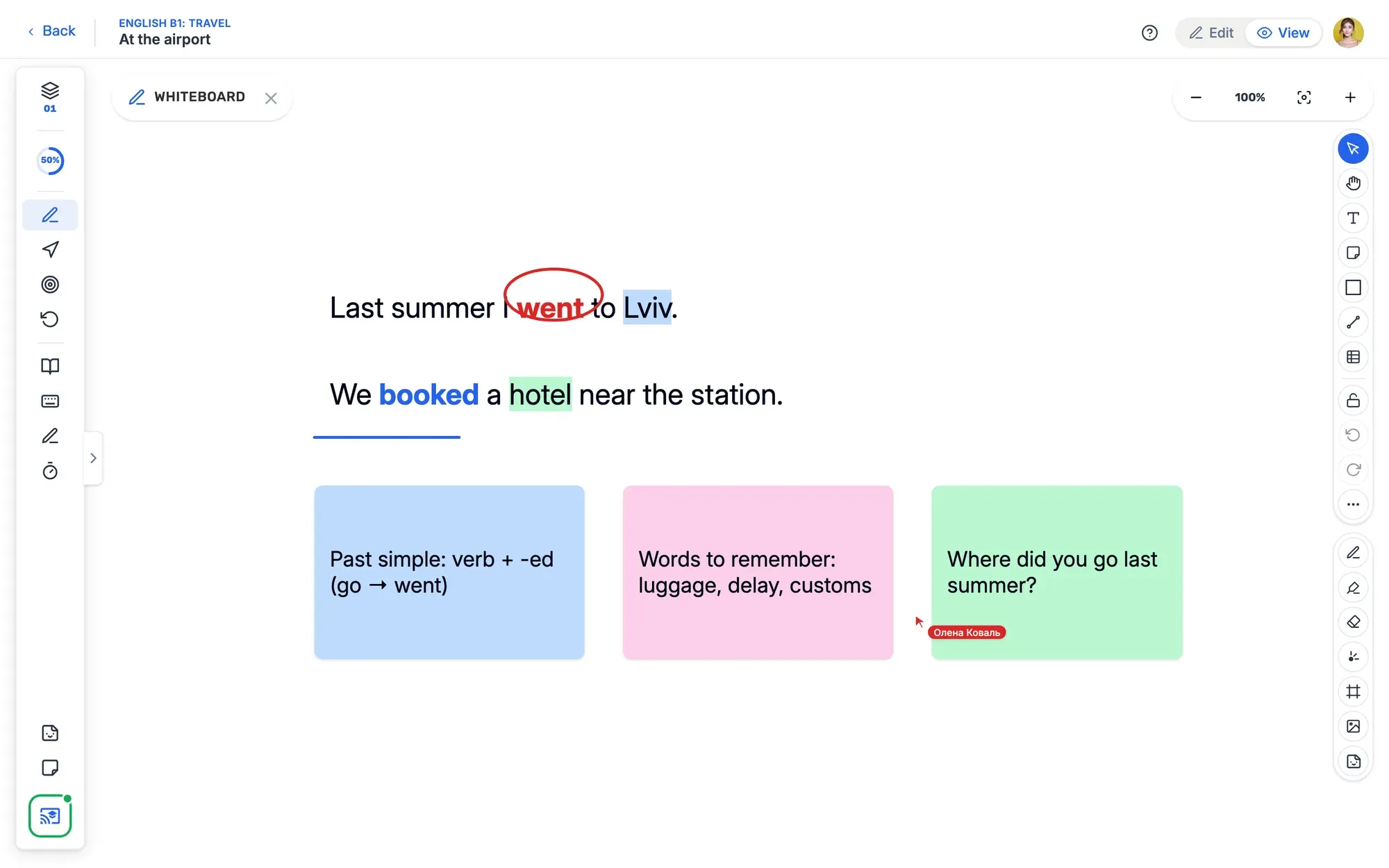 The teacher's view: tool panel on the right, the student's cursor on the board.
Students can lock and unlock items on their own board, which stops a sticky note from being dragged away by accident. Drag a sticky note or a picture note from the toolbox onto the board. If you had whiteboards before the update, they were carried over.
Drawing tools worth knowing
Curved lines and arrows, multi-point lines (click several points), a choice of arrowhead for each end, and an opacity slider. There is a hand-drawn font if you want the board to feel like paper. Keyboard shortcuts help in a live lesson: K for the laser pointer, Q to lock the current tool so you can keep drawing with it, and a double-click on empty canvas to type text.
Moving, resizing, recoloring, editing text and drawing show instantly and never jump back while saving. Drag on empty space to select several items, click empty space to deselect, and pinch to zoom on a phone or tablet. Frames move by their title or border, and thin lines and small highlights are easier to click.
Color single words
This is the feature grammar teachers notice first. Select one word, or several, in a text or sticky note and a small bar appears above them. Give just those words a text color or a highlight, next to bold, italic and underline. Only the selected words change, everyone sees it as it happens, it stays after you reload, and undo takes it back.
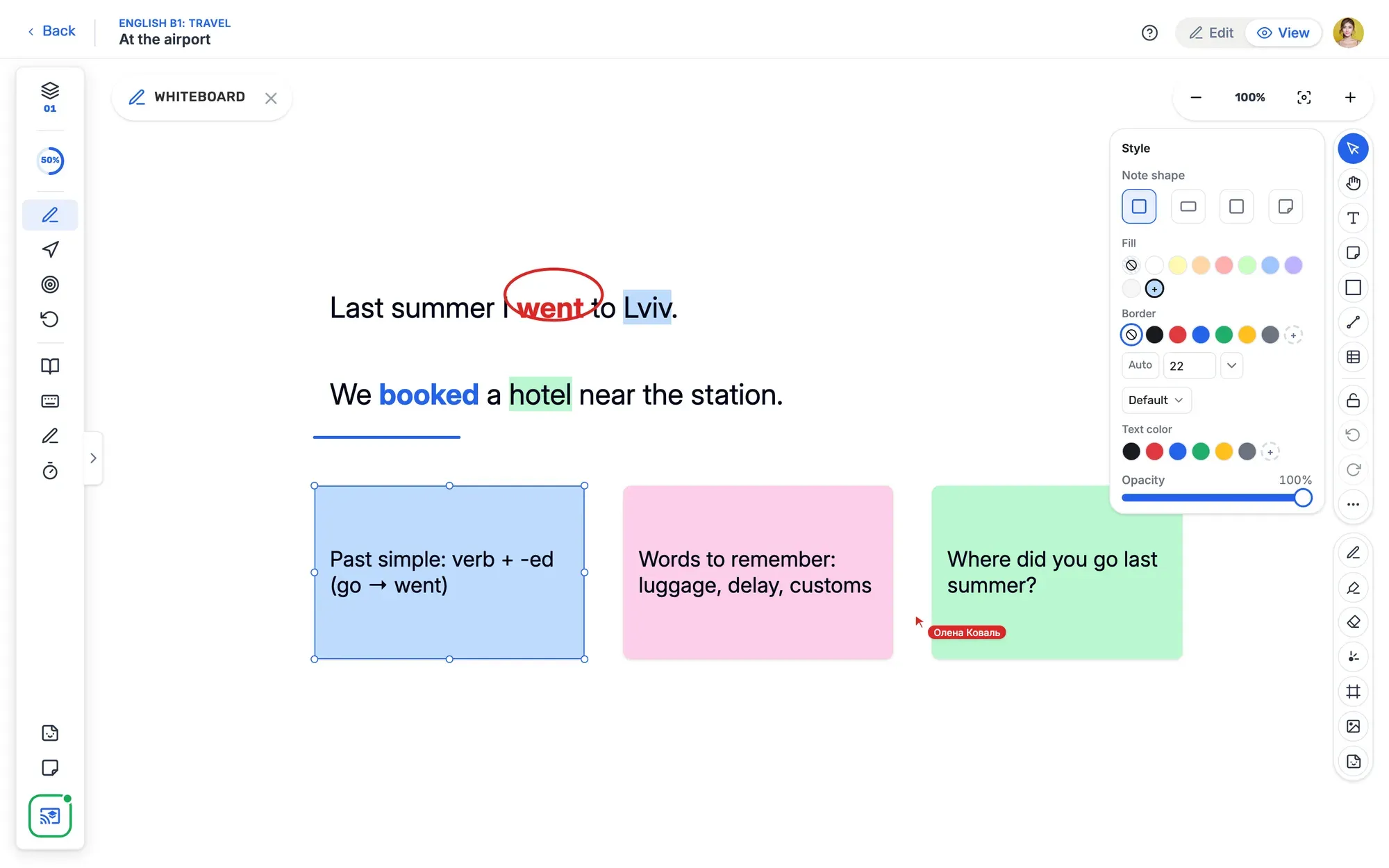 A selected sticky note with its style panel: fill, outline, text color and opacity.
Sentences color well: verb in red, time marker in blue, the auxiliary highlighted green. The student sees the pattern instead of hearing a rule about it.
Text on pictures
During a lesson, every picture has a pencil and, next to it, a text tool (the letter T). Click where you want the text, type and press Enter. Use the same colors as the pencil and a small, medium or large size. Drag the text to move it, double-click to edit, and use the eraser or the Delete key to remove it. The student sees it appear live, and it stays on the picture after a reload. It is a quick way to label a photo or number the parts of a scene.
A past simple lesson
You write “Last summer I go to Lviv” on the board and ask the student to find the mistake. She circles “go” with the pencil, types “went” over it and you color the verb red. Then you drop three sticky notes: the rule, words to remember, and a question to answer aloud. You both move things around at once, and the cursors show who is pointing at what.
The student's view of the same board.
Cursors are covered in more detail in live cursors, and the board shares its engine with canvas lessons. For ways to keep the student busy with the board, see keeping students engaged online.
The whiteboard is part of live lessons, which come with Starter and Pro. Starter has a 7-day free trial, and the details are on the pricing page.
Frequently asked questions
Can a student and a teacher draw at the same time?
Yes. Everyone can draw at once without overwriting each other, and you can see each other's cursors.
Can I color just one word in a sentence?
Yes. Select one word or several in a text or a sticky note and give just those words a text color or a highlight, next to bold, italic and underline. Everyone in the live lesson sees it as it happens, and undo takes it back.
Can I save the board?
Yes. You can save the board, or a selection, as an image.