Zoom, Miro, Wordwall and Quizlet in one place for teachers
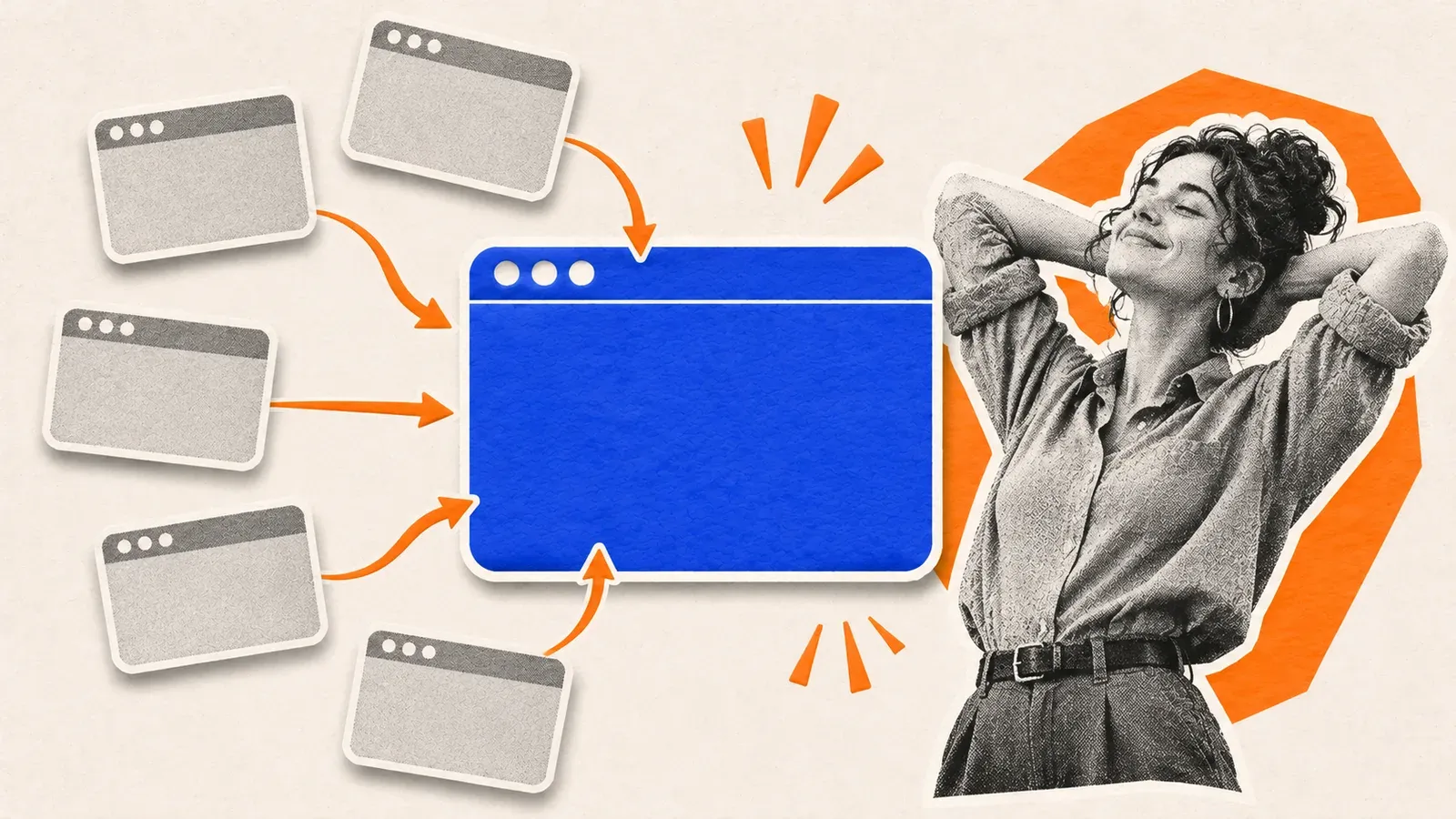
It is 17:58. Zoom is open in one tab, the warm-up is on a Miro board in the second, the vocabulary game is on Wordwall in the third, homework is a Google Doc, and the student has just asked which link to click. This guide is for language teachers who run lessons like that and want one place instead.
The short answer
verbios puts the board, the exercises, the vocabulary and the homework inside the lesson itself. Your Miro boards paste into a canvas lesson, your Wordwall, LearningApps and Kahoot activities become native exercises that check themselves, and Quizlet terms turn into flash cards and daily word practice. The call stays on Zoom or Meet: add the link once, and you and your student join it from the lesson with one click. You go from five tabs to two.
| You use | For | In verbios |
|---|---|---|
| Zoom or Google Meet | The call | Your link on the lesson; one-click Join call |
| Miro | Lesson boards | Canvas lessons and a shared whiteboard; Miro boards paste in |
| Wordwall, LearningApps, Kahoot | Games and quizzes | Native exercises, converted by the AI helper; live quiz for groups |
| Quizlet | Flashcards | Flash cards, learner’s dictionary, spaced-repetition word practice |
| Google Docs, chat | Texts and homework | Text blocks, homework page with due dates and auto-check |
The call: Zoom or Meet, one click from the lesson
verbios doesn’t do video calls itself, and you don’t need to change how you call. When you schedule a lesson, paste your Zoom or Meet link (or the whole invite, and verbios finds the link in it). Inside the live lesson there is a Join call button for you and the student. Set the lesson to repeat weekly and the link comes with it every week, and if you connect Google Calendar the lesson lands there too (recurring lessons).
What changes is everything after the click. You stop screen-sharing a board and pasting links into the chat, because the student is already in the lesson with you.
The board: from Miro to a canvas lesson
A canvas lesson is one free-form board instead of a stack of pages. You place headers, pictures, sticky notes, shapes, tables, flip cards and real exercises on it, and split it into sections the student can jump to. The exercises on the board still check answers, which is the part a plain board never did.
Moving a Miro board is a paste. Copy the board content in Miro and paste it onto the canvas. Images land as images you can select, drag and resize. Several items pasted together keep their layout. Flip cards stay flip cards, and Miro cards and checklists come across as well. Copying a group of objects on a verbios canvas and pasting it into another lesson keeps the arrangement, so a good warm-up layout becomes a template.
During the lesson, the whiteboard is part of the lesson too. You and your student draw at once with shapes, curved arrows and a laser pointer, each with a named live cursor, and the board is still there when someone reloads. Save it as an image at the end if the student wants it.
Games and quizzes: Wordwall, LearningApps and Kahoot become native exercises
An embedded game sends the student off to another site, and the result never reaches you. In verbios you convert the activity instead. Paste the link to a Wordwall, LearningApps or Kahoot activity into the AI helper, or select the embed in your lesson, and ask it to convert. A native block appears on the page, built from the same content. It works on a phone, it checks answers, and you can edit it like anything else you built.
For groups, the Kahoot moment is built in. The live quiz puts one question on every screen with a countdown and colored answers. No join codes, no second app: you watch the percentages move and the leaderboard form while you talk. For open answers, a Write & Vote round lets everyone write and then vote on the best one.
verbios has 40+ block types in total, including gap-fills, matching, crosswords, word search, video quizzes and card decks for speaking.
Flashcards: Quizlet terms and real word practice
Export the terms from a Quizlet set, paste them into the AI helper, and you get a flash cards block in the lesson.
Then the words keep working. Students highlight any word in a lesson to see a translation, transcription and learner-level definitions in the built-in learner’s dictionary, and save the meanings they need. Saved words come back in word practice on a spaced-repetition schedule, in six exercise types from flashcards to listen-and-type, with a daily goal and XP. You see every word each student has saved, so the vocabulary from Tuesday’s lesson is in their practice by Tuesday night, without a separate set to maintain.
Texts and homework: no more Google Docs in the chat
The reading text sits in a text block on the page, with the exercises right below it. When the student writes, you see the essay appear as they type in a live lesson, so you can step in at the sentence where they stall (watching essays being written).
Homework is its own page inside every lesson. Pick a student or a group, tick the tasks, set a due date and send. Quizzes, gap-fills and matching are checked the moment the student hands them in, and the student sees the result right away. Essays and recordings wait for your review. Nothing arrives as an attachment.
Moving your lessons over
You don’t have to move everything at once. A good order:
- Pick the lesson you teach most often.
- Paste its Miro board into a new canvas lesson.
- Convert its Wordwall or Kahoot activity with the AI helper.
- Paste the Quizlet terms for the week’s vocabulary.
- Schedule it with your usual Zoom or Meet link and teach it once.
If you have a whole library, the verbios team moves your materials for free, including courses from Edvibe and other platforms. Embedded Miro, Quizlet and Kahoot content in Edvibe courses comes across with them.
The same lesson, one week later
Tuesday, 18:00, a B1 student. You open the lesson, click Join call, and Zoom opens beside it. The warm-up is the board you pasted from Miro last week, and you point at a photo with a pulse instead of describing where to look. The phrasal-verbs game you used to open on Wordwall is now a block on the same page, and you watch the student’s answers come in. Three new words go into their saved words. At 18:55 you send homework with a due date of Friday, and the quiz part checks itself when they submit on Thursday. One link for the call, one for the lesson, and nothing in the chat.
What it costs
The editor and dozens of activity types are free, with no time limit, so you can rebuild your first lessons before paying anything. Starter is $24 a month for 20 live students and 75 self-paced, with a 7-day free trial, and includes the AI helper that does the Wordwall and Quizlet conversions. Students pay you inside verbios through your own Monobank, WayForPay or Stripe account with 0% commission. Schools get a Custom plan, with student limits and extra teachers set around the school. See the plans and verbios for schools.
If you are also comparing full platforms, read the best platforms for online language tutors and verbios vs Edvibe.
Prices and features checked in November 2026.
Frequently asked questions
Does verbios replace Zoom?
No. verbios doesn't do video calls itself. You add your Zoom or Google Meet link to the lesson, and you and your students join the call from the lesson with one click. The board, exercises, vocabulary and homework all stay in verbios.
Can I move a Miro board into verbios?
Yes. Copy the board content in Miro and paste it into a canvas lesson. Images arrive as images you can drag and resize, items pasted together keep their layout, and flip cards stay flip cards.
Can verbios turn a Wordwall activity into its own exercise?
Yes. Paste the link to a Wordwall, LearningApps or Kahoot activity into the AI helper, or select the embedded activity in your lesson, and ask it to convert. You get a native verbios exercise that checks answers automatically.
What happens to my Quizlet sets?
Export the terms from Quizlet and paste them into the AI helper. It builds a flash cards block, and students can save the words to their own spaced-repetition practice.