Convert Wordwall, LearningApps and Kahoot activities
You have a folder of Wordwall games, a few LearningApps exercises and a Kahoot quiz your B1 group loves. They live on three other sites and open in iframes, outside your own lesson. Rebuilding them by hand is the kind of evening nobody wants.
The AI helper in verbios does the rebuilding for you. This is the short version of how to convert Wordwall activities (and the others) into native verbios activities.
Paste a link or select the embed
There are two ways in. If you have the link to the activity, paste it into the AI helper and ask it to convert the activity. If the activity is already embedded in a lesson, select the embed and ask the same thing.
What comes back is not another iframe. It is a verbios activity built from the same content, so it sits in the lesson like any other block, looks like the rest of the page and works on a phone. Wordwall, LearningApps and Kahoot are all covered.
You still read the result before you use it. Open it, play through it once and fix whatever you want to word differently, the same way you would check a lesson you built yourself.
Quizlet terms become flash cards
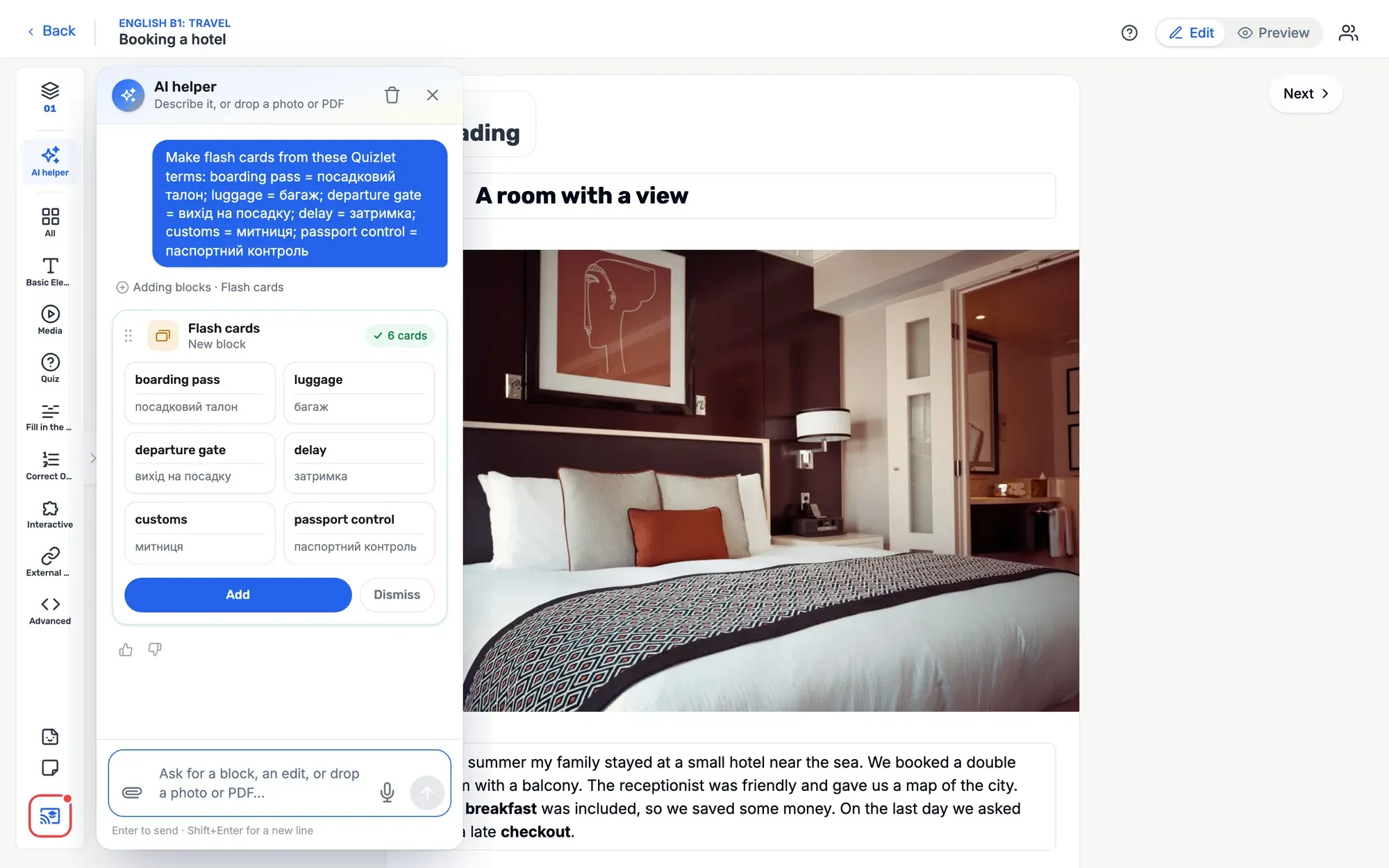
Quizlet works a little differently. Export your terms from Quizlet, paste them into the AI helper, and it turns them into a flash cards block you can add to the lesson (the picture at the top shows exactly this step). A set you spent a term building becomes a lesson block in a minute, and your students can keep the words they like in their own vocabulary. If you want to build on that, see how word practice works.
Images from Miro land as real images
If you also keep material on Miro boards, there is a related fix. An image copied from a Miro board and pasted onto a canvas lesson now arrives as a single image you can select, drag and resize. Paste several Miro items at once and they keep their layout instead of losing or duplicating pictures. More about that format in canvas lessons.
A scenario: one weekend before a new term
Say you teach three groups and want everything in one place before September. On Saturday you open your Wordwall account and copy the links of the eight games you actually use. In a new lesson you open the AI helper, paste the first link and ask it to convert the activity. Two minutes later there is a native block on the page. You repeat it seven times, check each one, and move on to the Kahoot quiz from last spring.
On Monday, a student does the activity inside the lesson, and the result stays with the rest of their work instead of on a game site you have to log into separately. The groups that used to need “open this link, then come back” now stay in one tab.
If you are also planning how to structure the lessons around these activities, the guide on planning a lesson fast fits well with this, and so does the one on teaching vocabulary so it sticks.
Related and next steps
The AI helper is available on paid plans. If you are curious about everything else it can do, read the AI helper post. To try the conversion on your own activities, see the pricing page.
Frequently asked questions
Can I convert a Wordwall activity without rebuilding it by hand?
Yes. Paste the link into the AI helper, or select the embedded activity in your lesson, and ask it to convert the activity into a verbios activity.
Does this work for LearningApps and Kahoot too?
Yes. Wordwall, LearningApps and Kahoot are all supported, by link or by selecting the embed.
What happens to my Quizlet sets?
Paste the terms you exported from Quizlet and the AI helper turns them into a flash cards block.