AI helper for English teachers: build a lesson in minutes
Planning is the part of teaching nobody pays you for. You have a textbook page, a topic a student asked for and forty minutes before the lesson. Typing out ten gap-fill sentences and four quiz questions by hand is where those minutes go.
The AI helper sits at the top of the toolbox in the lesson builder. You tell it what you need, by typing or speaking, and it proposes blocks. You stay in charge of what ends up in the lesson.
Ask for a block, get a proposal
Type something like “Make 4 multiple choice quiz questions about checking in to a hotel, B1 level”. The helper answers with a block you can read before it touches your lesson.
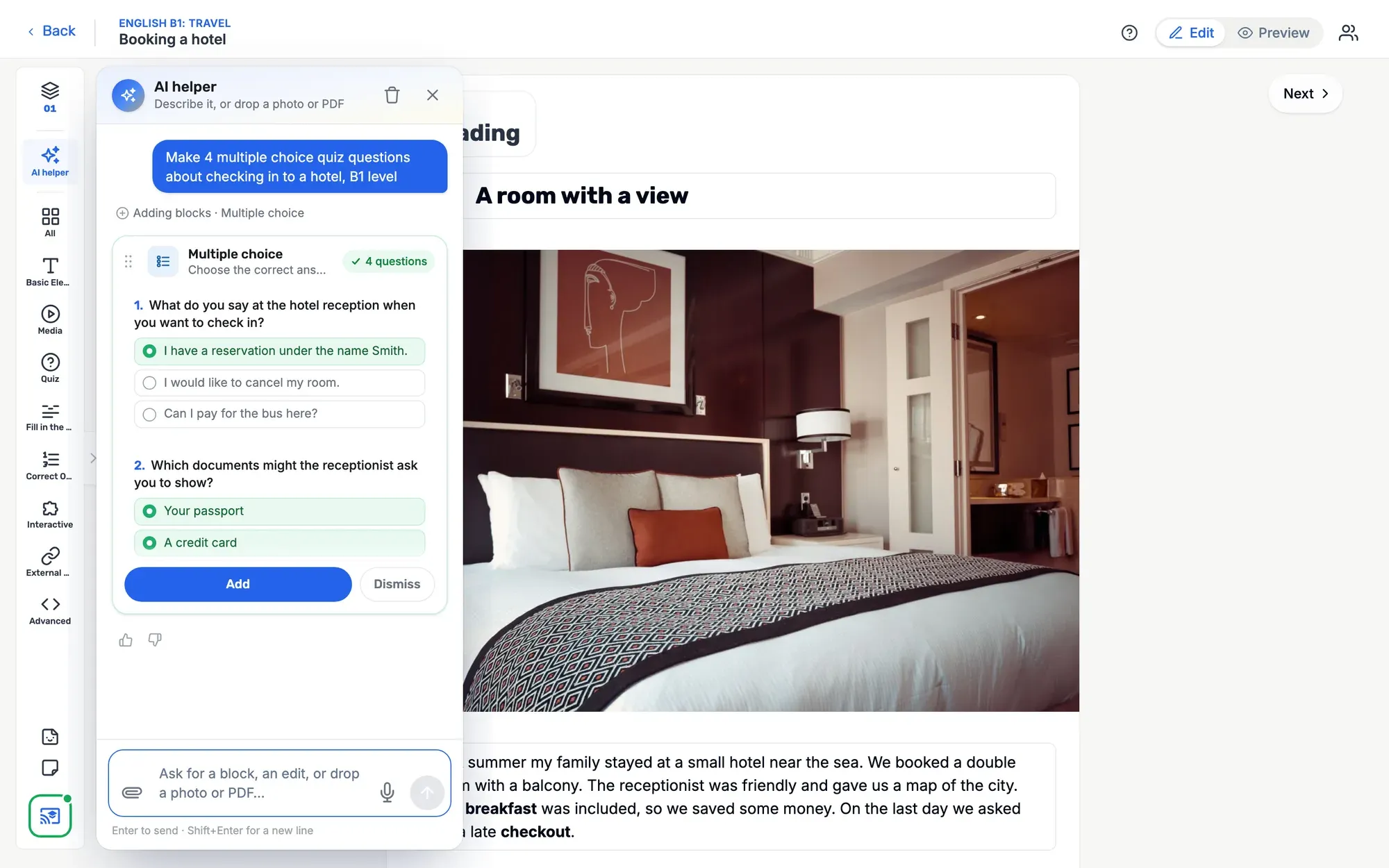 A proposed quiz with Add and Dismiss. Nothing lands in the lesson until you press Add.
You can drag the proposal into the lesson or press Add. If it isn’t right, Dismiss it and ask again with a different instruction. Under each answer there are a thumbs up and a thumbs down: if something went wrong, tell us in a few words. Ask for 10 questions and you get 10.
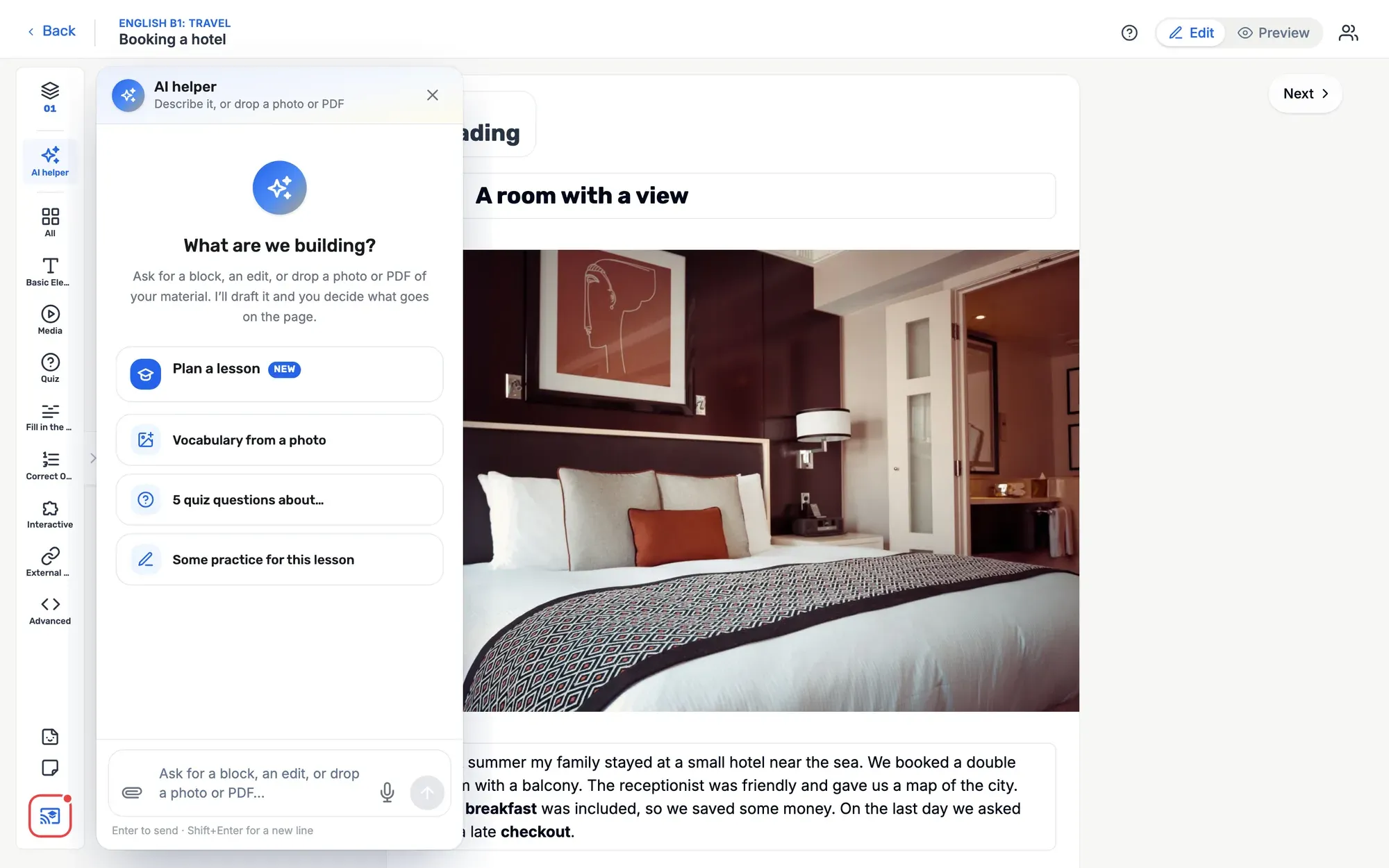
The starter suggestions on the panel show what it is good at: planning a lesson, vocabulary from a photo, quiz questions and practice.
The helper panel opens beside the lesson, so you can see both at once.
Plan a whole lesson
Choose Plan a lesson and the helper asks a couple of quick questions first. Then it shows a plan you can rearrange, and when you approve it, builds the lesson page by page (or section by section on a canvas lesson) in your course’s language and level. You review the result like any lesson you wrote yourself and edit whatever you want.
This is a first draft that gets you from a blank page to something you can improve, not a finished lesson to run without reading. If you want a skeleton to give it, see our plan-a-lesson-fast guide.
PDFs and photos become exercises
Drop in a PDF or a photo of a textbook page and the helper can turn every section into exercises, cutting out the pictures. It follows your instruction instead of always copying the page:
- Ask for words that fit a picture, questions about a photo, or a speaking task, and it uses the file as a theme.
- Say “only the word list” and it takes just that part.
- If it isn’t sure what you want, it asks: turn it into exercises, add the picture to the page, or use it as a theme.
- A follow-up like “no, use it just for the theme” reuses the same file and replaces the earlier suggestions.
You can also select a picture already in a lesson, whether an image block, a picture on a canvas or a sticky note, and ask the helper to turn it into an exercise. It reads that picture the same way it reads one you upload. Word lists translate into your own language, and Add audio on a card adds spoken audio for that exact block.
Edit what you already have
The helper also changes existing blocks: a list into a table, a text into a “Select the answer” exercise. It shows the before and after, so you see exactly what changed. Pictures come from stock photos and GIFs, and a built-in image editor lets you crop, remove backgrounds, erase, sharpen and restore the original.
A Sunday evening example
A teacher has a B1 group starting a travel unit on Monday. She photographs two pages from the coursebook, drops them into the helper and says “only the word list, then 8 gap-fill sentences and a short speaking task”. She gets a proposal, rearranges two blocks, dismisses one question that is too easy and adds the rest. The lesson is ready before dinner. The same lesson can then go to the whole group, as covered in teaching online groups.
If you already have exercises on Wordwall, LearningApps or Kahoot, importing them as native blocks is a separate feature.
The AI helper is included in the paid plans. Details are on the pricing page.
Frequently asked questions
Is the AI helper an extra cost?
No. Usage is included in the Starter and Pro plans at no extra charge.
Does the AI add content to my lesson without asking?
No. It proposes blocks, and you add them with one click or dismiss them. For edits to existing blocks it shows the before and after.
What happens to the files I upload?
Messages, files and the helper's drafts are kept so verbios can review and improve the feature, and only verbios staff can see them. Uploaded files are deleted after 30 days, everything else after 90 days.