Online homework with automatic checking and due dates
Homework has two problems: students don’t know exactly what is due, and you spend Sunday evening ticking gap-fills that a computer could check in a second.
Homework in verbios fixes both ends. You send a chosen set of tasks with a due date, and when a student hands in exercises with right answers, the result is there immediately.
Sending homework
Every lesson has a homework page. Pick a student or a group, choose which tasks to include (all are ticked to start) and press Send homework. The dialog tells you how many tasks go out and lets you set a due date. The student gets a notification and finds the homework in their queue.
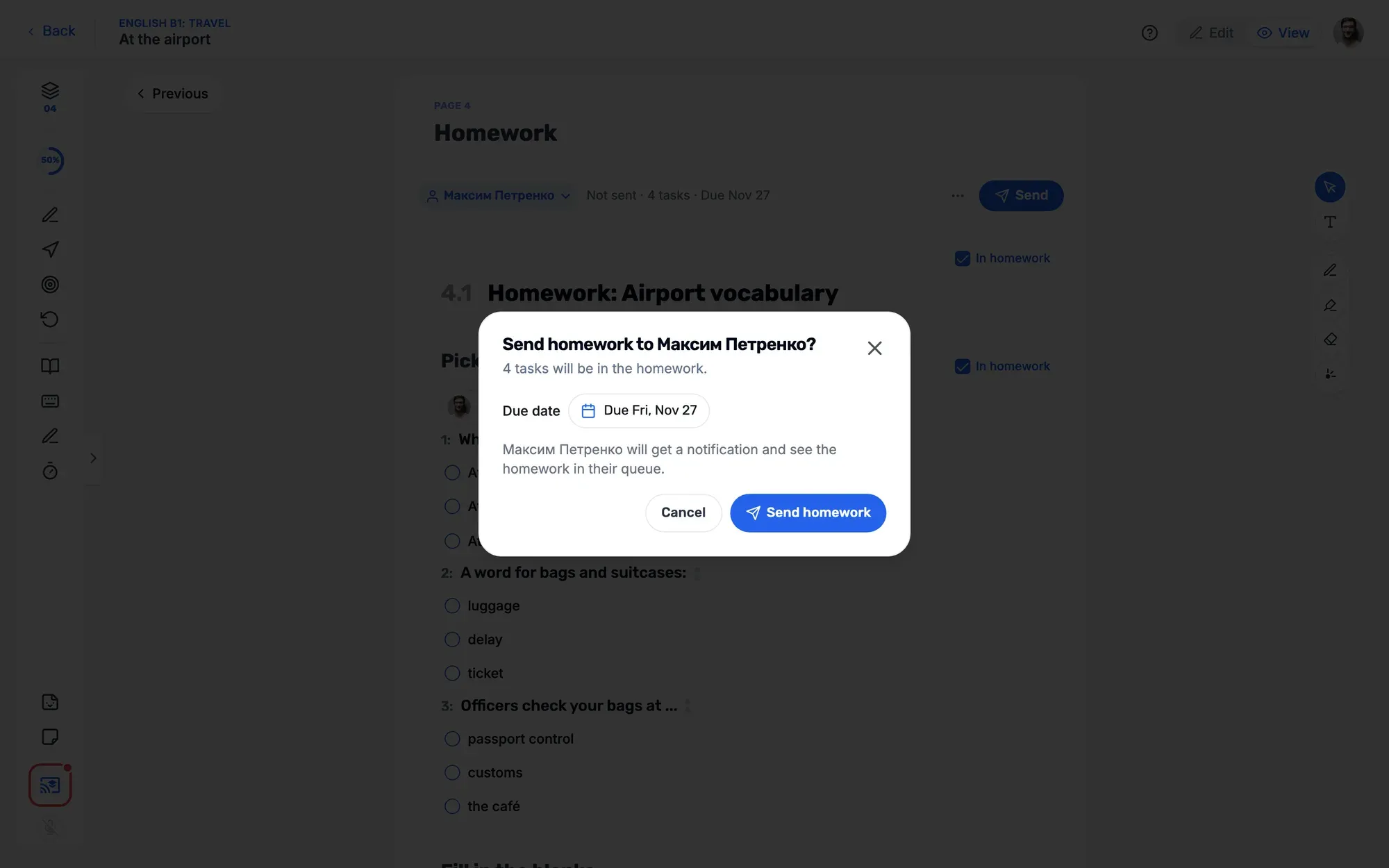 The send dialog: number of tasks, due date, and who gets notified.
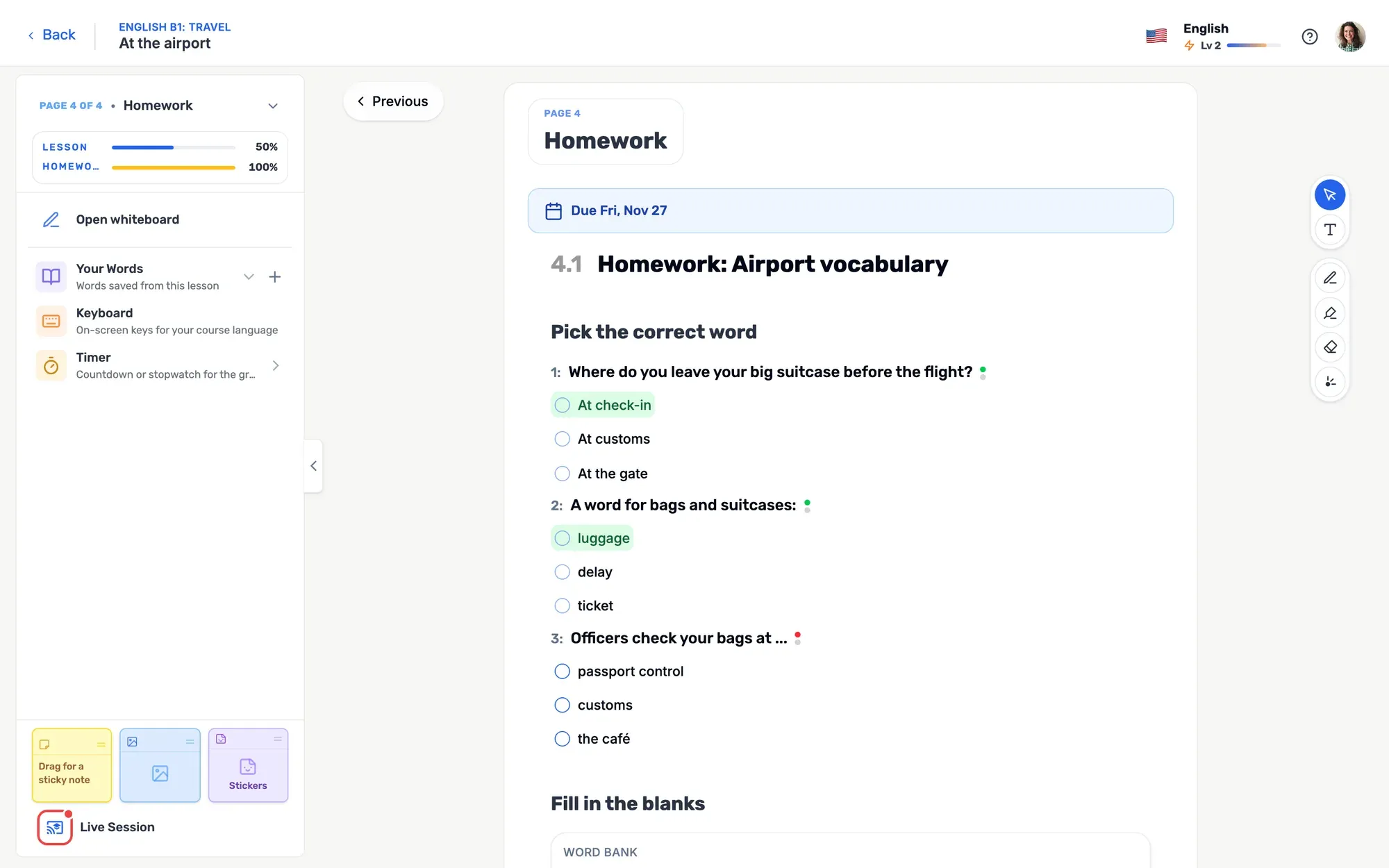
Students see the due date on the homework page and in their lists. Homework shows up whatever it contains, including pictures or text only. After you send, the page shows only the tasks you assigned, and you can show the rest to add more. If a student can’t open the course, the picker tells you before you send, not after they say they never got it.
What the student sees: the due date on top, tasks below.
Reordering for one student
With a student or a group selected, you can change the order of the tasks: drag by the handle, or use the Move up and Move down buttons. It works for tasks you prepared in the course and for ones you send to homework during a lesson, so a picture you add mid-lesson can go first. The order belongs to that student or group only. The course’s homework page and everyone else’s homework stay as they were, and an open student page updates right away.
Checked the moment it’s handed in
Students press Submit Homework when they finish, with a reminder if some exercises are unfinished. When the homework is made only of exercises with correct answers, such as quizzes, fill in the blanks or matching, it is checked automatically and the student sees the result right away.
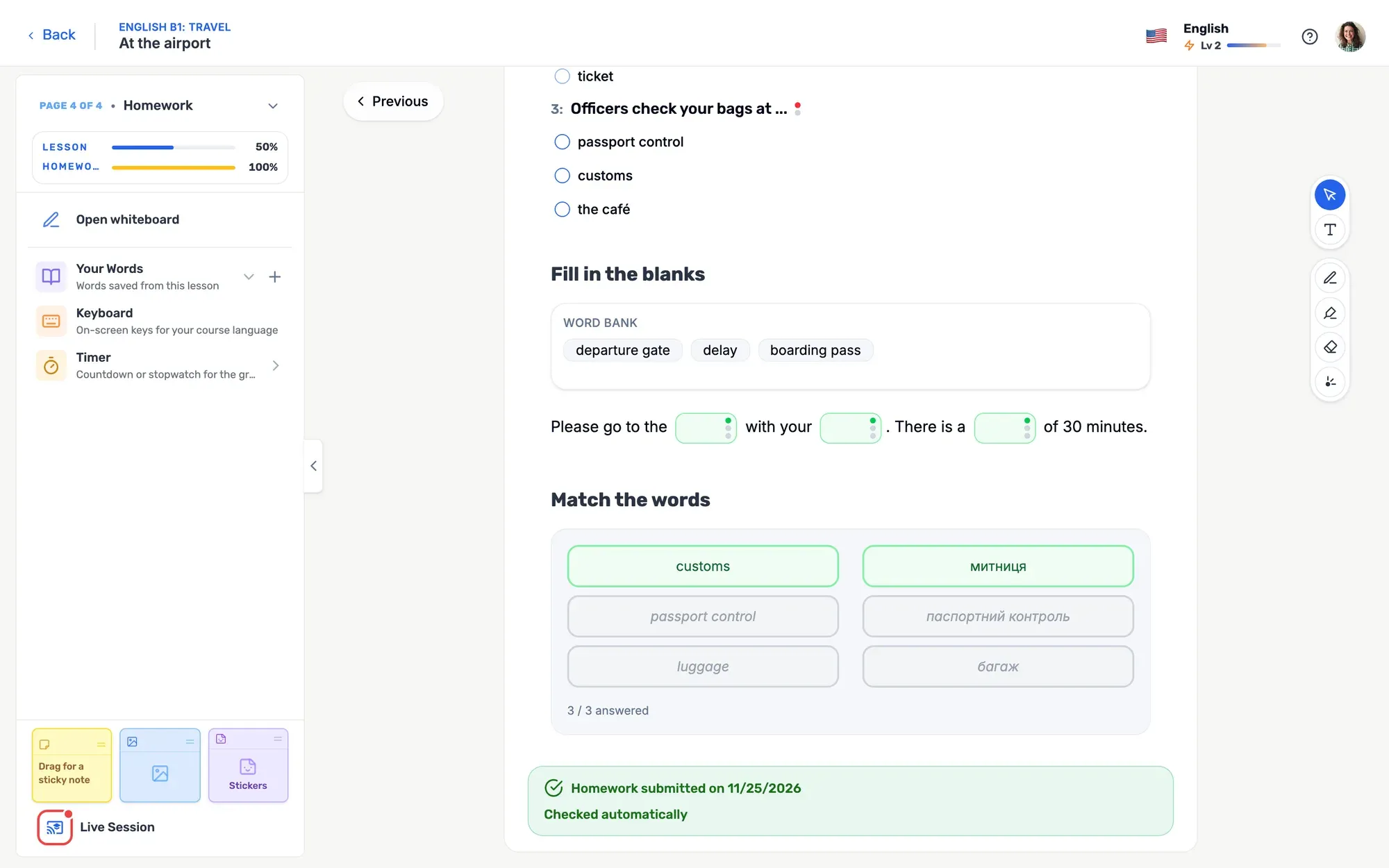 Submitted and checked, with no wait for the teacher.
Essays, recordings and exercises without marked answers still wait for you. Mixed homework therefore stays with the teacher, which is the right call: a machine shouldn’t grade a paragraph. And you can always review an automatically checked homework or send it back.
What the teacher sees
Your homework page shows the status (Sent), the number of tasks, the due date, and green and red markers per question, so you can see which items the student got wrong without opening each exercise.
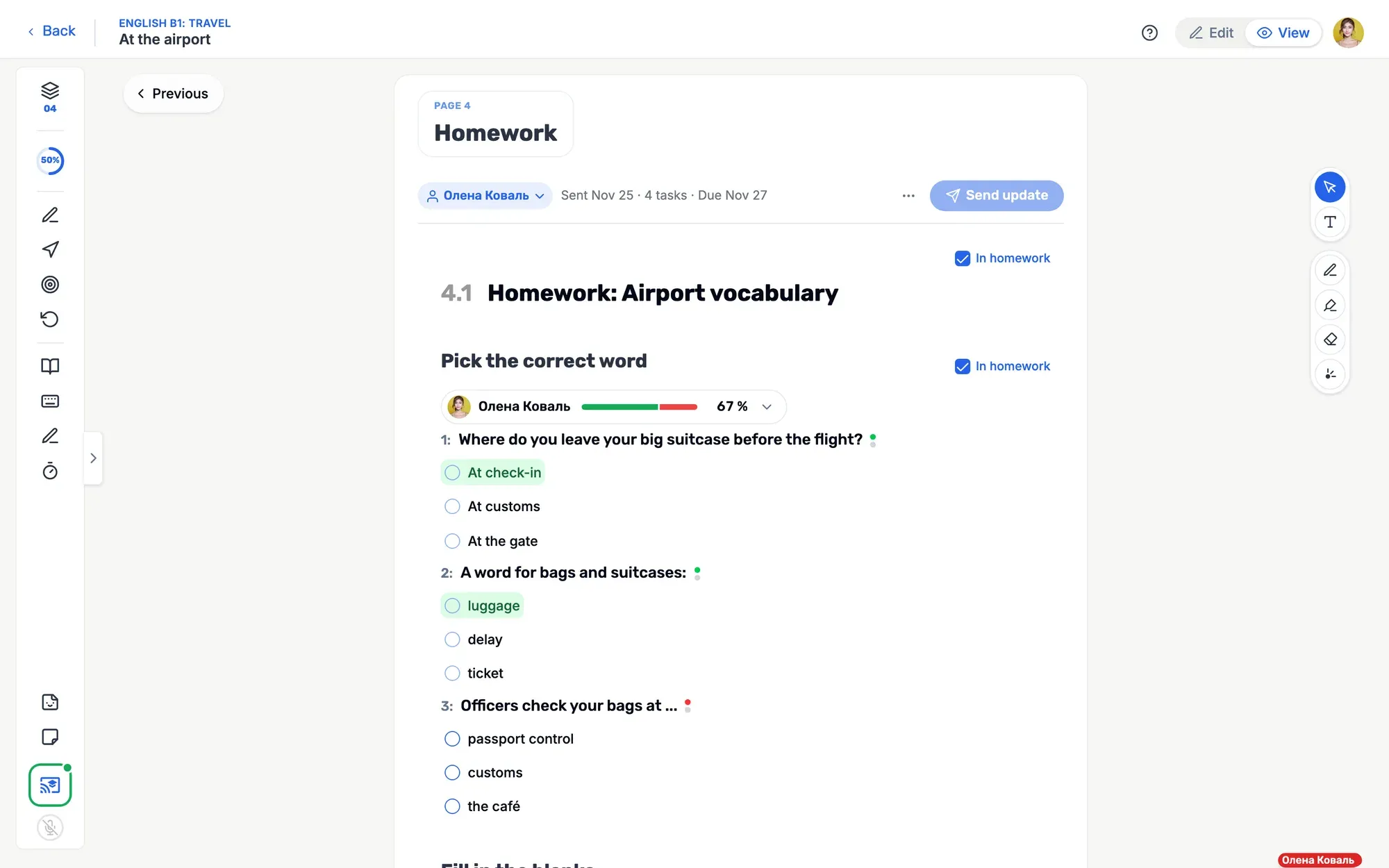 The teacher's view of the same homework.
An example week
You teach a B1 group on Tuesday and Thursday. After Tuesday’s lesson you send the vocabulary quiz and the gap-fill with a Thursday due date, and move the picture description to the top for the two students who struggled. By Wednesday night the quiz results are in and you know which words to revisit, so Thursday starts with the real gaps. The essay you assigned is waiting for your review in the meantime.
For the habits that make students actually finish, read homework students actually do. The words they miss can feed straight into word practice.
Sending homework to your own students needs Starter or Pro. Details are on the pricing page.
Frequently asked questions
Which homework is checked automatically?
Homework made only of exercises with correct answers, such as quizzes, fill in the blanks or matching, is checked as soon as the student hands it in. Essays, recordings and exercises without marked answers still wait for the teacher.
Can I still review automatically checked homework?
Yes. Teachers can always review it or send it back.
Can I send homework to a whole group?
Yes. On the homework page you pick a student or a group, choose which tasks to include and press Send homework.