Live quiz for online groups: a Kahoot alternative in your lesson
A quiz wakes a group up. Everyone has to commit to an answer, there is a clock, and somebody always groans when the result appears. The usual cost is logistics: open another site, send a code, wait for the one student who cannot join, then go back to the lesson.
In verbios the quiz is a block on the lesson page. During a live lesson you run it for the whole group, and every student’s answers show up for you in real time.
What the student sees
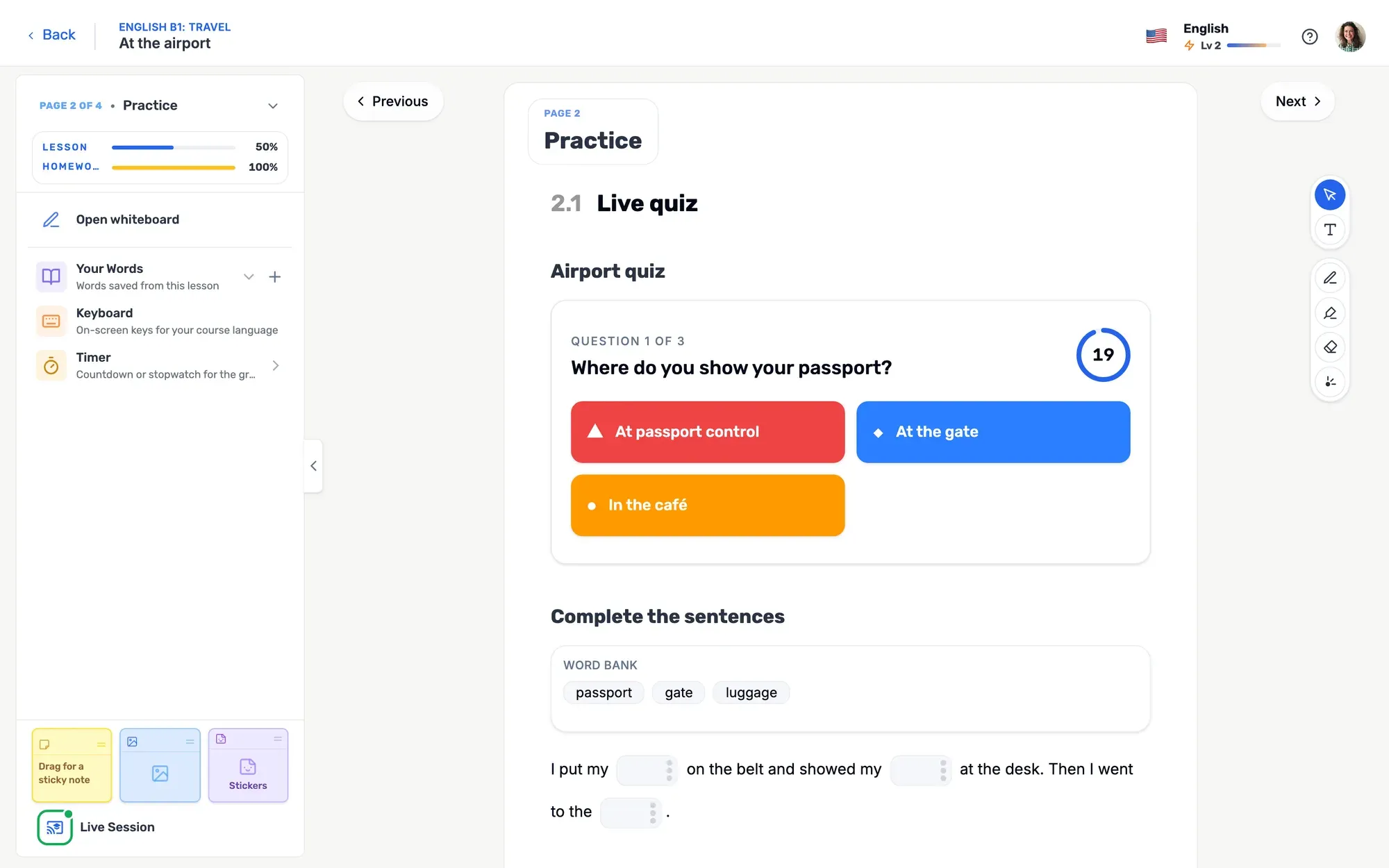
A question appears on every student’s screen at the same moment, with a countdown ring and colored answer buttons. Each option has its own color and shape, so even a young learner who is still reading can answer fast.
A question, a countdown and three colored options on the student's screen.
After answering, the student sees whether they were right, how many points they earned, and where they stand on the group’s leaderboard.
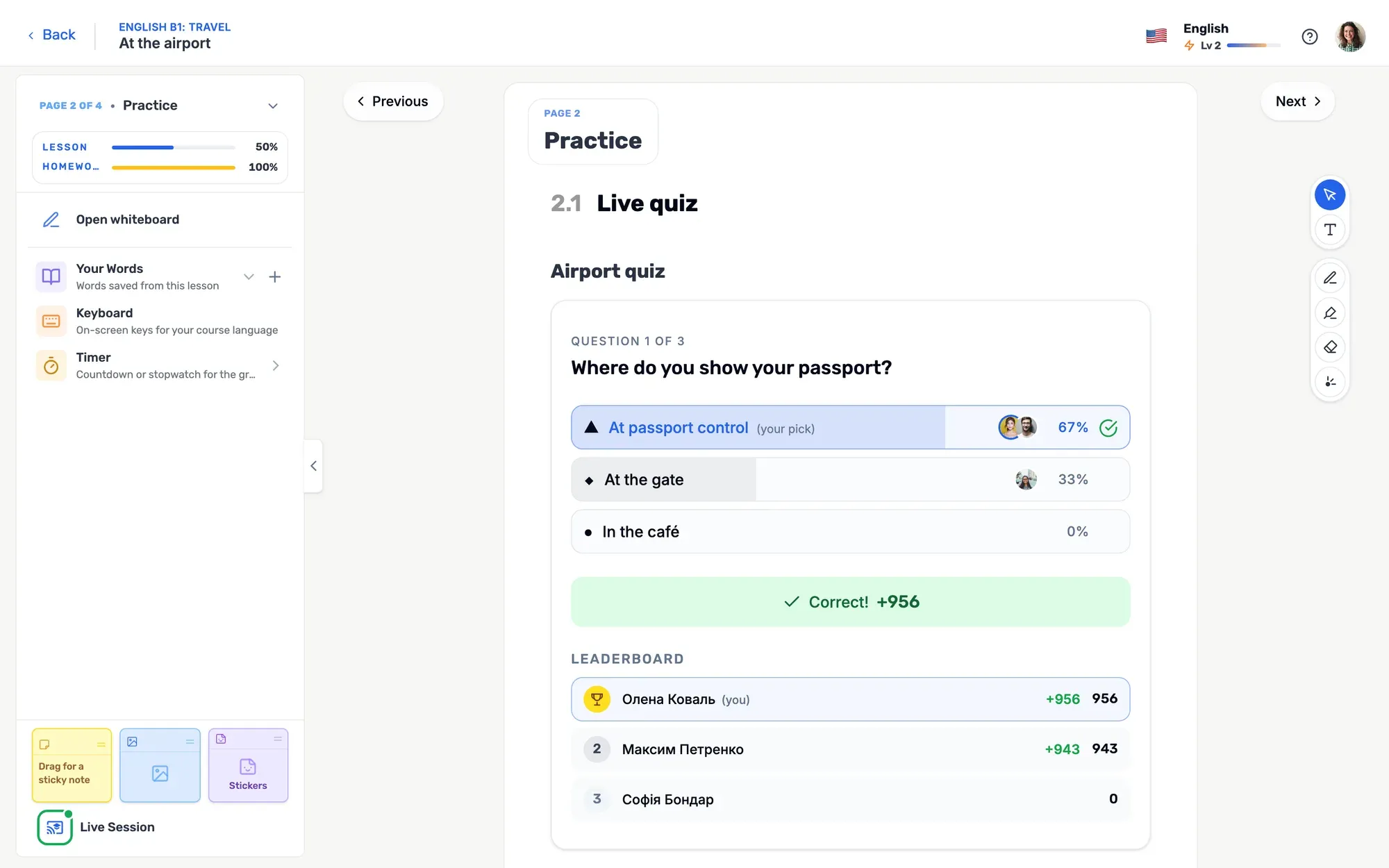 The result screen: a green Correct banner, points and the leaderboard.
What you see as the host
You get host controls on the block: a Next button to move to the following question and a stop button. While students answer, the options fill in live. Each option shows a percentage and the avatars of the students who picked it, the correct answer is marked, and the leaderboard below updates with the points.
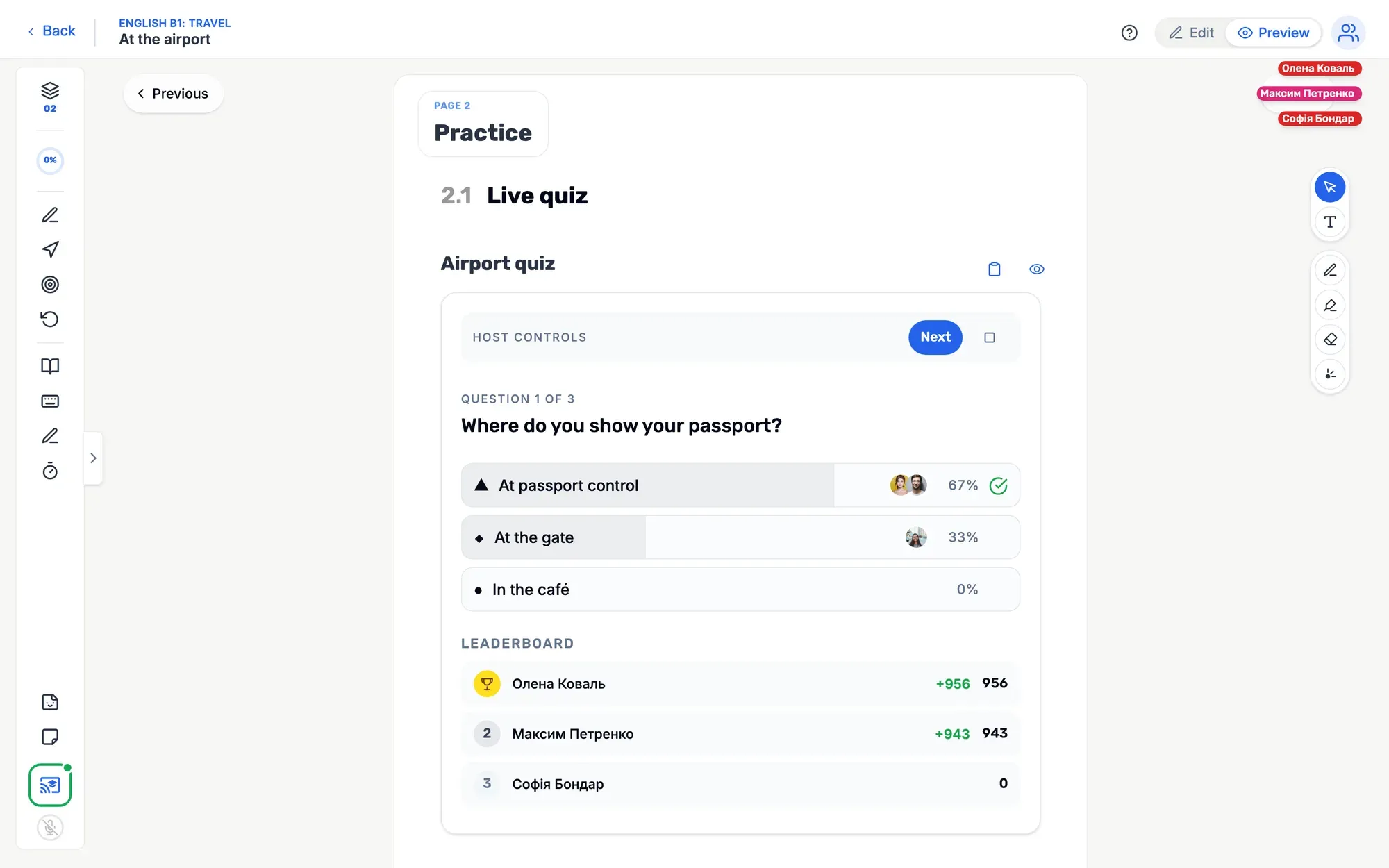 The host view: percentages per option, avatars of who chose what, and the leaderboard.
This is the useful part. A 67% / 33% split tells you what to explain next. If a third of the group chose “At the gate” for passport control, you stay on that question for another minute instead of moving on.
Running it with a group
The quiz is built for groups, and a few other live-lesson changes help. The student switcher lists the group itself, so after looking at one student’s page you can return to the whole group in one click. While viewing the group, the eye in the page list hides or shows a page for every student at once. That makes it easy to keep the quiz page closed until you want it, then open it for everyone together.
A realistic scenario: you teach a group of five teenagers a lesson on airports. Midway you open the practice page, where the quiz block has three questions on travel vocabulary. You press Start, the clock runs, answers fill in. One student answers faster than anyone and takes the lead, and the others suddenly care about the next question. Afterwards you stay on the question where the group split and go through why. The quiz lasted four minutes, and you did not leave the lesson.
Where it fits
A quiz works best as a short break between two heavier tasks: a warm-up on last week’s vocabulary, a check after a grammar explanation, or the last five minutes of a lesson. For more ideas on keeping groups active, see our guides on teaching online groups and keeping students engaged online. If you want practice outside the live lesson, word practice covers what students do on their own.
You can build a quiz block into any lesson. Running it live with your own group needs Starter or Pro, and Starter has a 7-day trial: see pricing.
Frequently asked questions
Do students have to leave the lesson to join the quiz?
No. The quiz is a block on the lesson page. Students in the live lesson see the question where they already are.
Can I see who answered what?
Yes. The teacher's view shows each student's avatar next to the option they chose, along with the percentage for each option and a points leaderboard.