Build a language course with Claude: connect your own AI
You have the idea for the course in your head: A2 English for adults, six lessons, each with a dialogue, a gap-fill, a matching exercise and a short writing task. Building it block by block in an editor is not hard, but it is an evening. Typing that same paragraph into Claude and getting the structure back in a minute is what many teachers already do. The missing part is the copy-paste afterward.
With verbios that part goes away. You connect your own AI assistant, and it works directly in your courses: it reads them, creates lessons and pages, adds blocks and edits what is already there. Claude, ChatGPT and other MCP-compatible clients can all connect.
How to connect
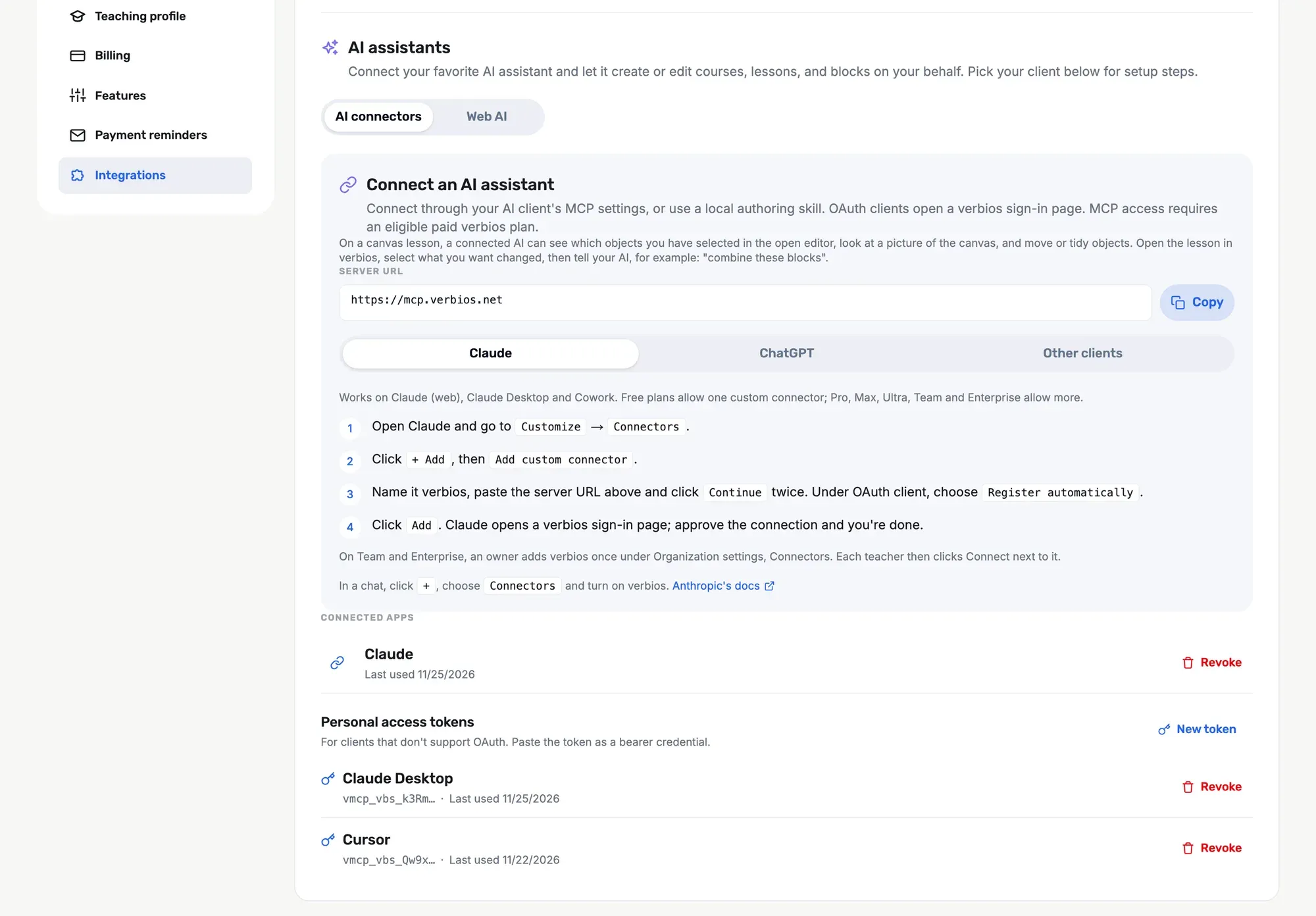
Open your profile and go to Integrations, then the AI connectors tab. There is a server URL to copy and a set of steps for each client. Connecting is a sign-in, not a token paste.
Integrations: server URL, setup steps for Claude, ChatGPT and other clients. The connected apps and tokens shown are sample data.
For Claude (web, Claude Desktop and Cowork) the steps in the app are: open Customize, then Connectors, click + Add, then Add custom connector, name it verbios, paste the server URL, click Continue twice, choose Register automatically under OAuth client and click Add. Claude opens a verbios sign-in page, you approve, and that is it. On Claude Team and Enterprise an owner adds verbios once under Organization settings, and each teacher then clicks Connect.
ChatGPT goes in as a plugin through Add custom MCP server, with OAuth as the authentication method, and you pick verbios in a new chat. Other clients that follow the MCP authorization spec can connect with the same URL. For clients that cannot do OAuth there are personal access tokens you can create and revoke in the same screen, and you can revoke any connected app at any time.
There are two other routes. Local agents such as Claude Code, Codex or Gemini CLI can use the verbios course-authoring skill, though the package is not publicly downloadable yet. And the Web AI tab covers AI that runs in your browser, which works on the lesson you have open through your signed-in session. That one is marked experimental in the app.
Plans. Connecting an AI assistant needs a paid plan (Starter or Pro). It is not available on Free. verbios does not sell the AI usage here: it is your own assistant, so the limits are whatever your Claude or ChatGPT account has. The separate built-in AI helper, which drafts exercises right inside a lesson, is included in Starter and Pro.
What the assistant can do
Ask it in normal language. “Create a B1 course on the present perfect with six lessons, each with a short text, a gap-fill and a matching task.” It builds the course tree: course, lessons, pages and blocks. Classic page-based lessons are the default, and canvas lessons are created only when you ask for a canvas.
It can also edit. “Rewrite the second page to use shorter sentences.” “Add an answer key to every gap-fill in lesson three.” You can ask it to read a course first and tell you what is missing.
A practical habit: let it do the first draft of the structure and the boring parts, then open the lesson and fix what a teacher would fix. Writes happen one at a time and the assistant is told to check content and order before moving on, but a draft is still a draft.
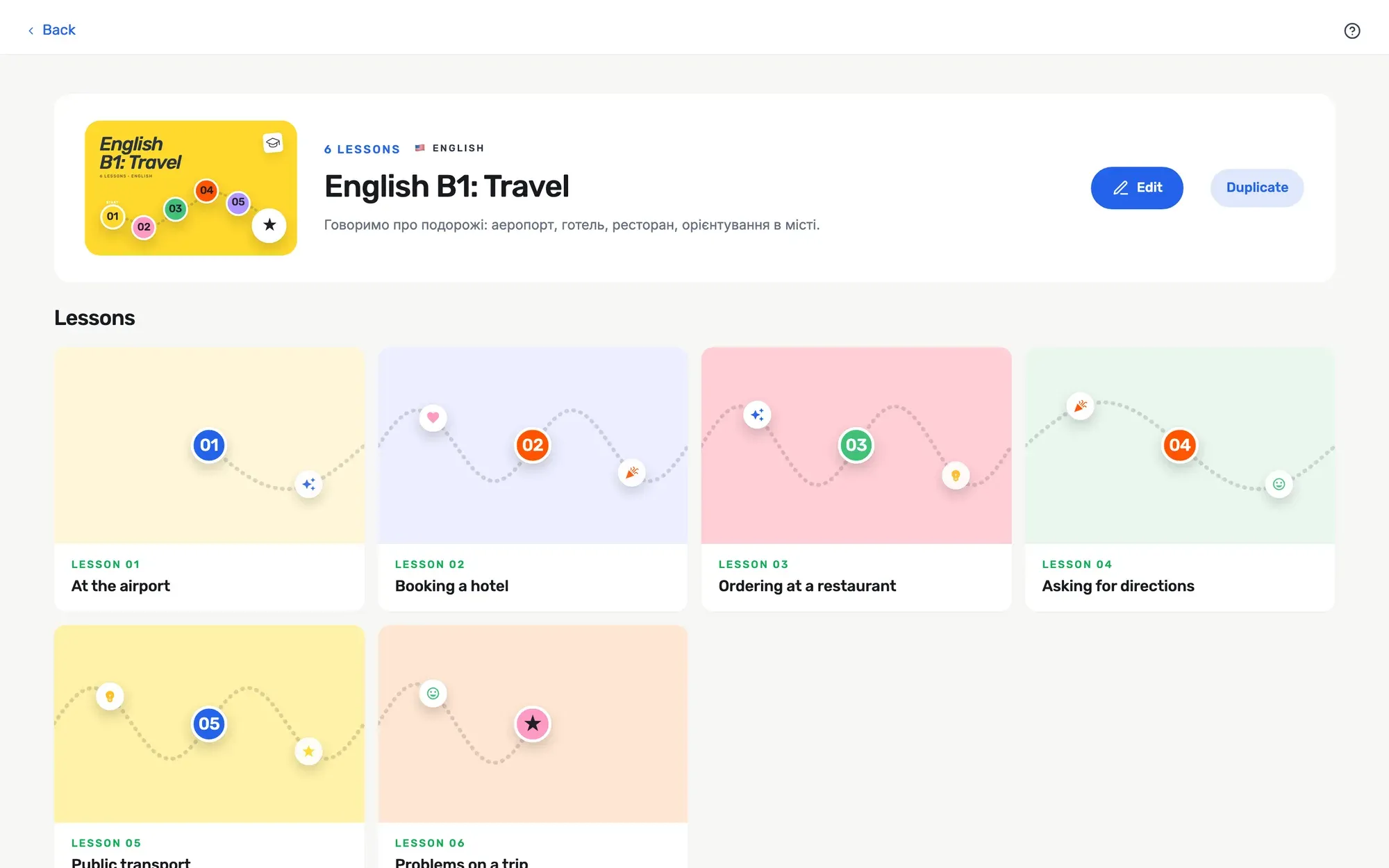 A finished course with six lessons, standing in for what an assistant builds.
Works in school libraries too
If you are part of a school, the assistant can work in the school library as well as your personal one. It can list the school’s courses, create a new course there or edit an existing one, under the same permissions as the app. Adding pictures to school courses still happens in the editor, and school content stays inside the school.
Canvas lessons: select and say
On a canvas lesson, a connected AI knows which objects you have selected in the open editor, can look at a picture of the canvas, and can move, align, space out and group objects. Select five blocks and write “combine these blocks” or “line these up”. The same works through the Web AI route.
A scenario: prep for the week
On Sunday a tutor with fourteen students pastes her plan for next week into Claude: two groups, one at B1 and one at A2, topic of travel. Claude creates two lessons in the right courses, with a vocabulary list, a dialogue and a gap-fill each. On Monday morning she opens them, replaces a few examples with her students’ own, and the lessons are ready for live classes without an evening of building. When a lesson needs a lot of free-form material, she opens it as a canvas lesson and tells Claude to tidy the board.
To connect your own AI, start from the plans and pick one that includes it.
Frequently asked questions
Is connecting Claude or ChatGPT available on the Free plan?
No. Connecting an AI assistant requires a paid plan: Starter or Pro. The Free plan has the full lesson editor but no AI client access.
Does verbios charge for the AI work done through my own Claude or ChatGPT?
verbios does not sell that usage. You bring your own AI, and what it costs is governed by your Claude or ChatGPT account. The built-in AI helper is a separate feature included in Starter and Pro.
Can the assistant edit my school's courses?
Yes, with the same rules as the app. School admins can edit every school course, and a teacher can edit the courses they created. If you belong to a school and do not say where a course should go, the assistant asks first.